

Custom fields & domain types
Domain types and custom fields are how Behaview lets you tailor the platform to your organization: types of a kind of record (Session Plan, Staff, and so on), each type with its own custom fields.
Every practice tracks a little more than the built-in fields cover, and what that “little more” is depends on the work. You might record the funding source for a Client, the setting of each session (clinic, home or school), or a safety check recorded on every session of a given type. Domain types and custom fields let you record exactly this, alongside the standard fields, without waiting for it to be built into the product.
What you can customize
Section titled “What you can customize”Custom fields apply across the platform:
- Session Plans and Staff can have several types, each with its own fields: e.g. the BACB Session Plan types, or Staff, Clients and Guardians/Parents.
- Skills, roles and teams each use one default type, so their custom fields apply to every skill, role or team.
Custom fields
Section titled “Custom fields”Each custom field has a type, such as Text, Number, Date, Boolean for yes/no, or Single Select for a list, and each type it appears on can give it a default value. This is how you capture exactly the information your organization needs on each record.
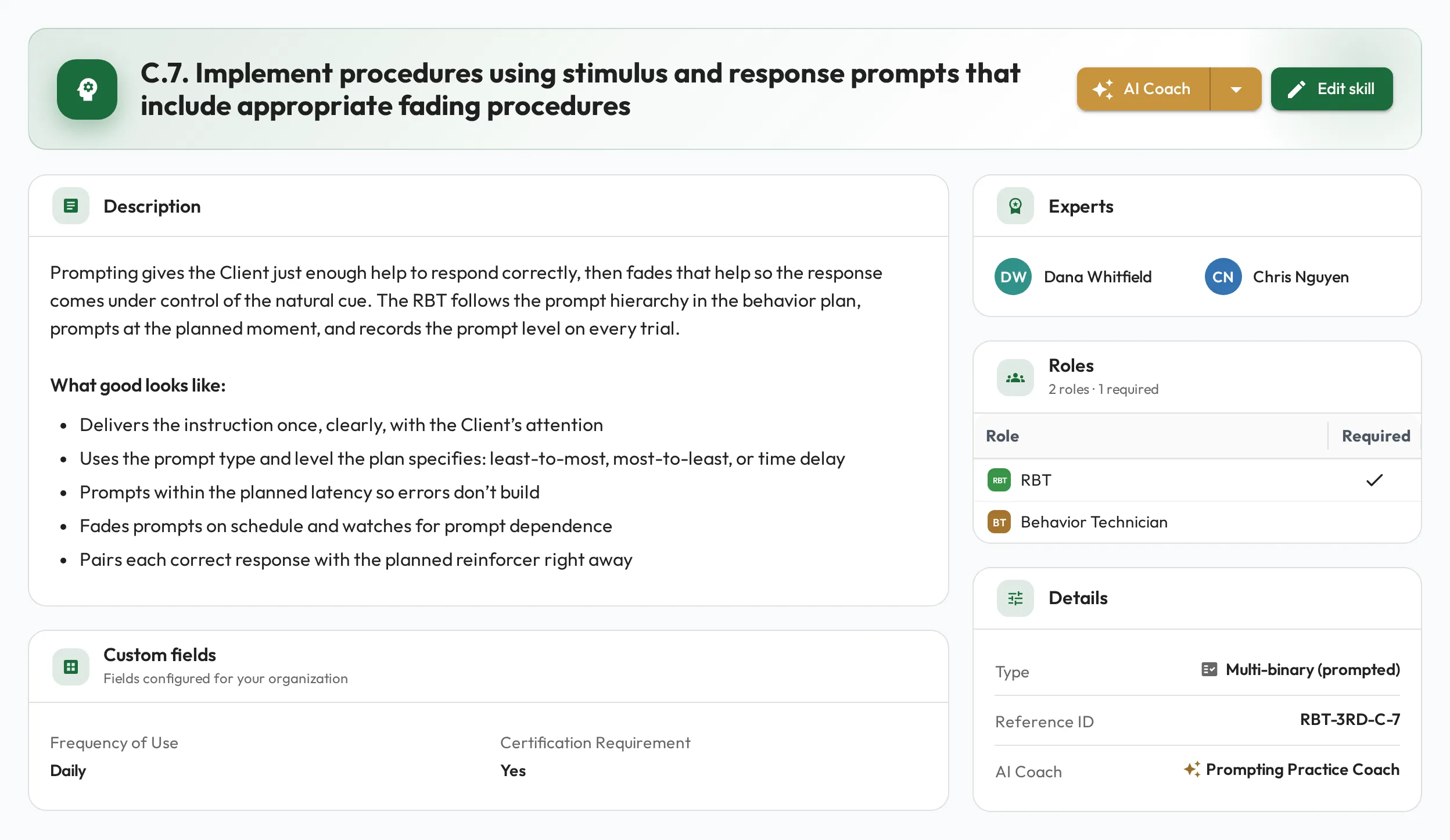
Once a type’s fields are defined, they appear on the create and edit form for every record of that type, and on the record’s page, while the association’s Show Visibility is ticked. Here a Skill’s page shows a Custom fields card below the description:
A field with List Visibility checked also shows as a column in its list: on the Skills, Roles and Teams lists for your default type, and on the Session Plans and Staff lists once you pick its type from the Type filter, which appears when there is more than one type. Show or hide columns from Manage columns; the list remembers the choice for each type in that browser, and Reset there brings back the defaults.
Behaview-managed BACB fields
Section titled “Behaview-managed BACB fields”An ABA organization starts with types and fields that Behaview manages, so the BACB reports can read them:
- On Staff: Qualification, Certification ID, Pursuing BACB Certification, Fieldwork State and Fieldwork Country. See Certification fields.
- The BACB Supervision and BACB Independent Session Session Plan types, with fields such as Supervision Type, Format, Activity Category, Concentrated Fieldwork, Client Observed and Observation Minutes. See BACB Session Plans.
- The Clients and Guardians/Parents staff types.
Managed fields, types and field associations are ticked in the Restricted column. Managed fields and field associations have no edit or delete actions, and a managed type cannot be renamed or deleted: you can only change whether it is the Default type and whether it is Enabled. Managed items don’t count toward your plan’s limits on custom fields and types. You can still add your own fields to a managed type, and give a managed Session Plan type a default agenda.
Session Plan types
Section titled “Session Plan types”Session Plan types have extra settings. One of them is a default agenda: Markdown that every new Session Plan of that type starts from, so a recurring session always opens with the same outline, such as the review points for a monthly BACB supervision. Anyone who can edit the Session Plan can still change its agenda, and editing the type’s default agenda later leaves existing Session Plans untouched.
Set it from Organization → Edit → Customization → Session Plans, using Add agenda (or Edit agenda) in the Default agenda column on the type.
If question sets are turned on for your organization, a default agenda can also place a question set, so every new Session Plan of that type asks the same questions without anyone remembering to add them. Open the default agenda, use the toolbar’s Insert question set button or type / and choose Question set, then pick the set. Like everything else in a default agenda it only reaches Session Plans created afterwards. If that question set is later deleted, edit the default agenda too, or every new Session Plan starts with a card pointing at nothing.
Where to set it up
Section titled “Where to set it up”Domain types and their fields are configured by admins from Organization → Edit → Customization. Once defined, the fields appear on the relevant records for everyone to use. On that tab, the Custom fields card lists every field; below it, pick a kind of record (Session Plans, Staff, Skills, Teams, Roles) to see its types and, under Field associations, which custom fields each type shows.
Admins can also set this up from their connected AI: describe what you want to track and it can create the fields and attach them to the right type for you.