
Running a session
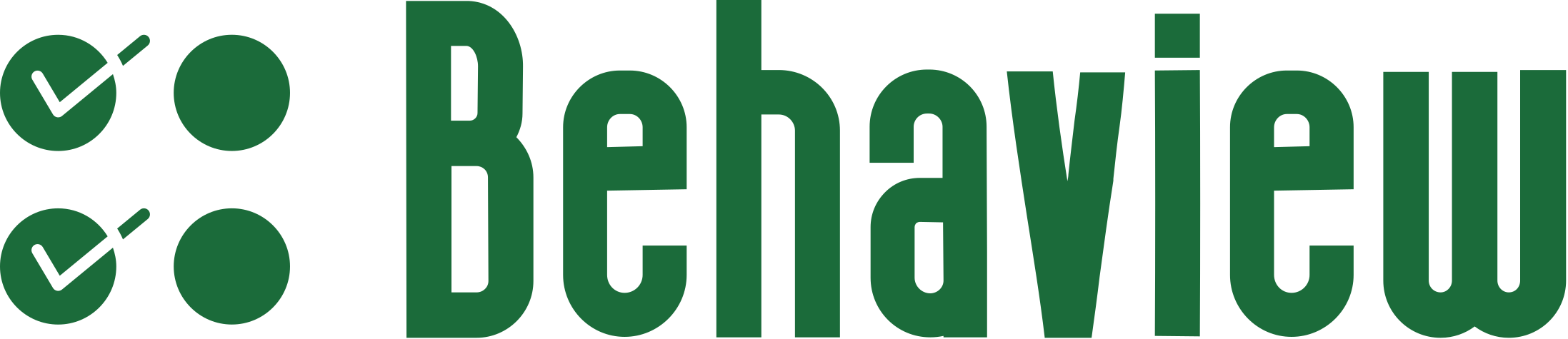
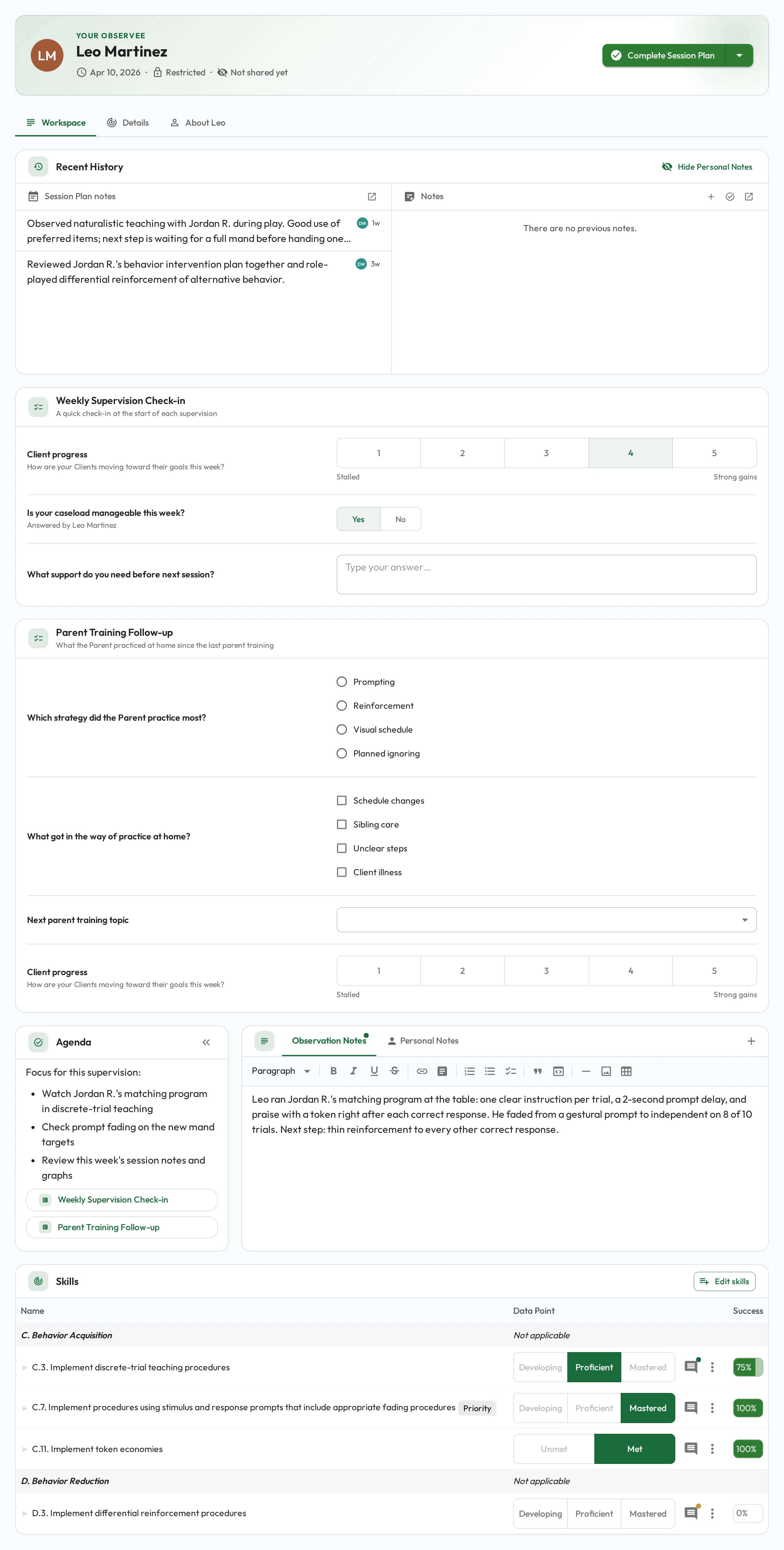
When a session starts, its Session Plan opens as a focused workspace: the person’s recent history across the top, the agenda and notes front and center, and the skills to observe further down.
Scoring skills
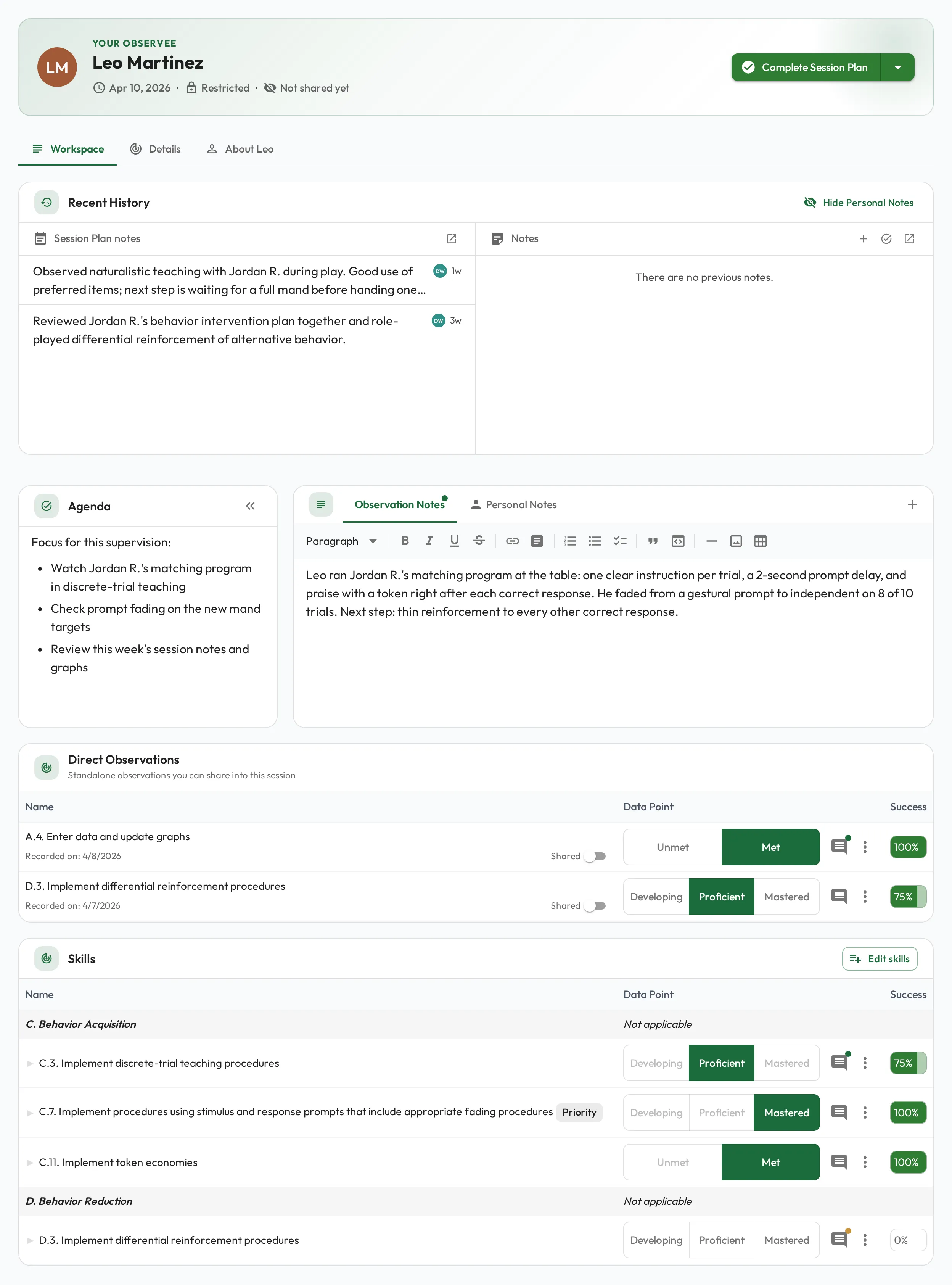
Section titled “Scoring skills”Scoring is the heart of a session, but it’s flexible. The Observer decides which skills to rate and how deeply, based on what actually came up, such as how the RBT ran a discrete trial program or delivered prompts.
Record an observation
Section titled “Record an observation”For each skill assessed, record a score using its assessment type: a yes/no, a rating, or a set of trials. Scores build the person’s progress and count toward mastery once results are shared, which completing the Session Plan does.
Share drafted observations
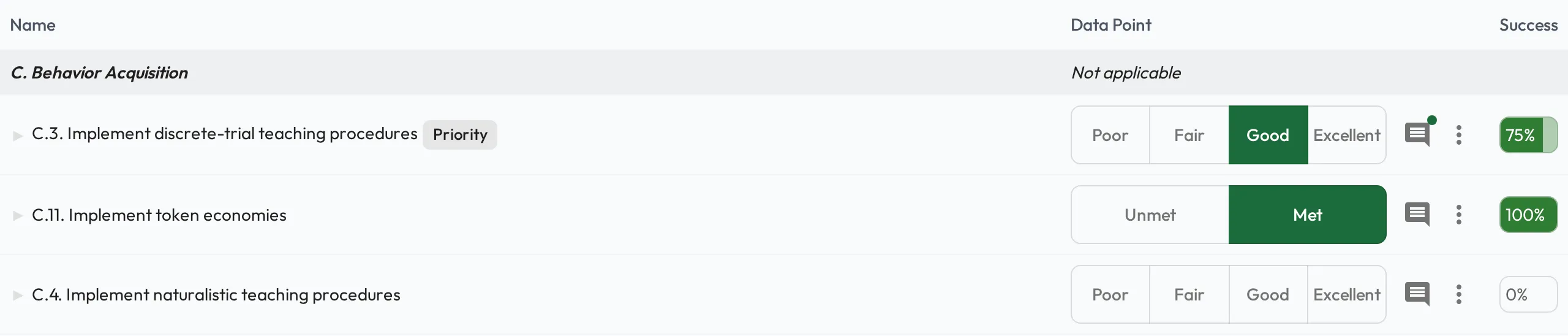
Section titled “Share drafted observations”Observations don’t have to wait for a session. When you see an RBT demonstrate a skill during a session with a Client, record a direct observation on the spot: from their profile, open the skill and score it, or tell your connected AI what you saw.
A direct observation starts as a draft (saved but not yet published). Your drafts on that person appear in the Direct Observations card, above the skills, of any of their Session Plans that isn’t done yet. That makes the session the natural place to deliver the feedback: talk it through together, then, as that Session Plan’s Observer, flip the Shared toggle to publish it, or delete it if it was a mistake. Once shared, it counts toward progress and mastery like any other observation.

Take notes as you score
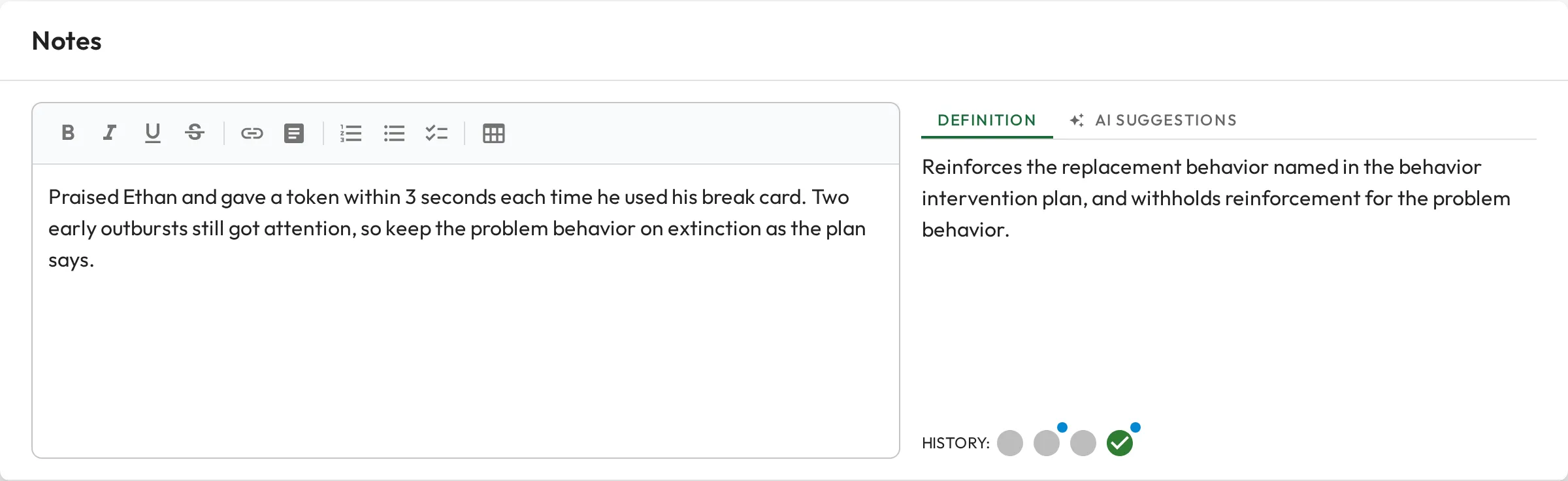
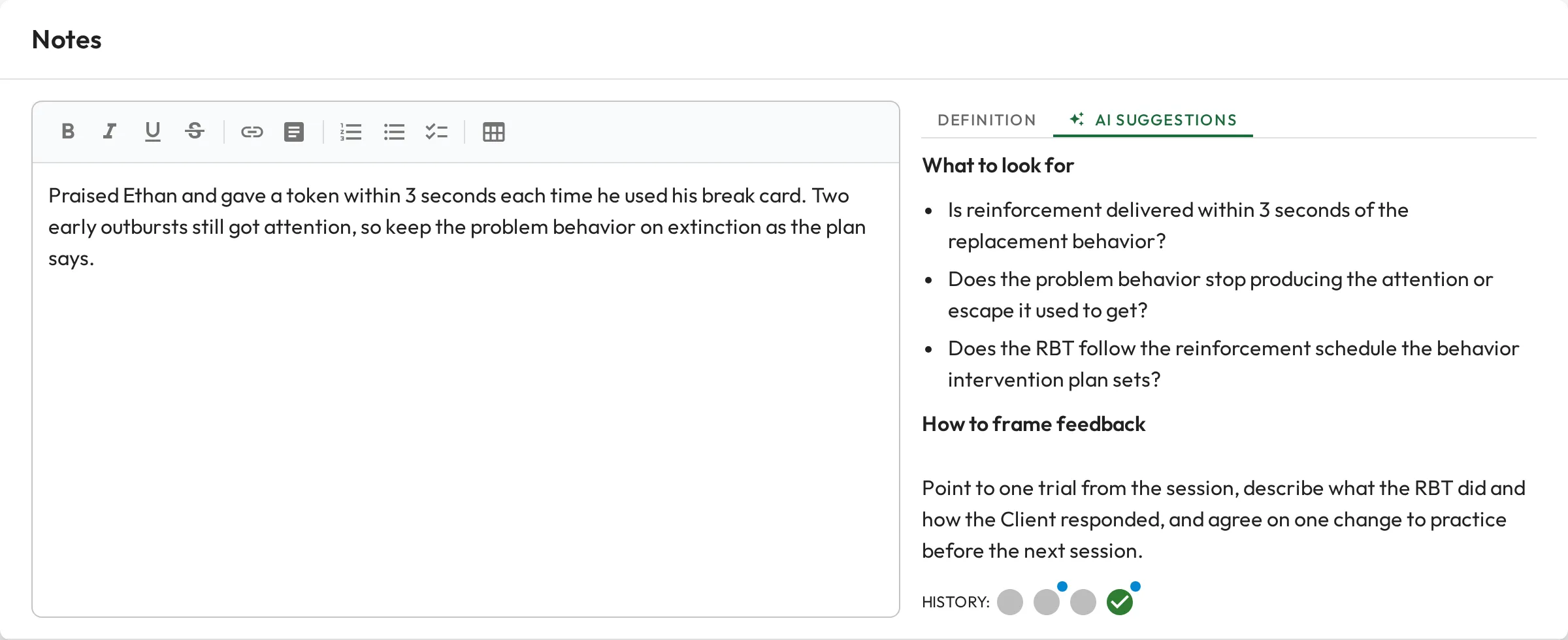
Section titled “Take notes as you score”Capture notes directly against a skill while it’s fresh, so the score carries the context behind it, such as which prompt level you saw. The skill’s definition and past observations sit right beside the editor.
Get AI coaching help
Section titled “Get AI coaching help”If your organization has assigned an AI Coach to the skill, the same dialog’s AI Suggestions tab offers guidance while you assess: what to look for and how to frame feedback. Without one, the tab says no AI Coach is assigned to the skill.
No one is required to assess everything: rate only what there was time to observe, and skills that are skipped are simply left untouched (see the overview).
Review a recording while you take data
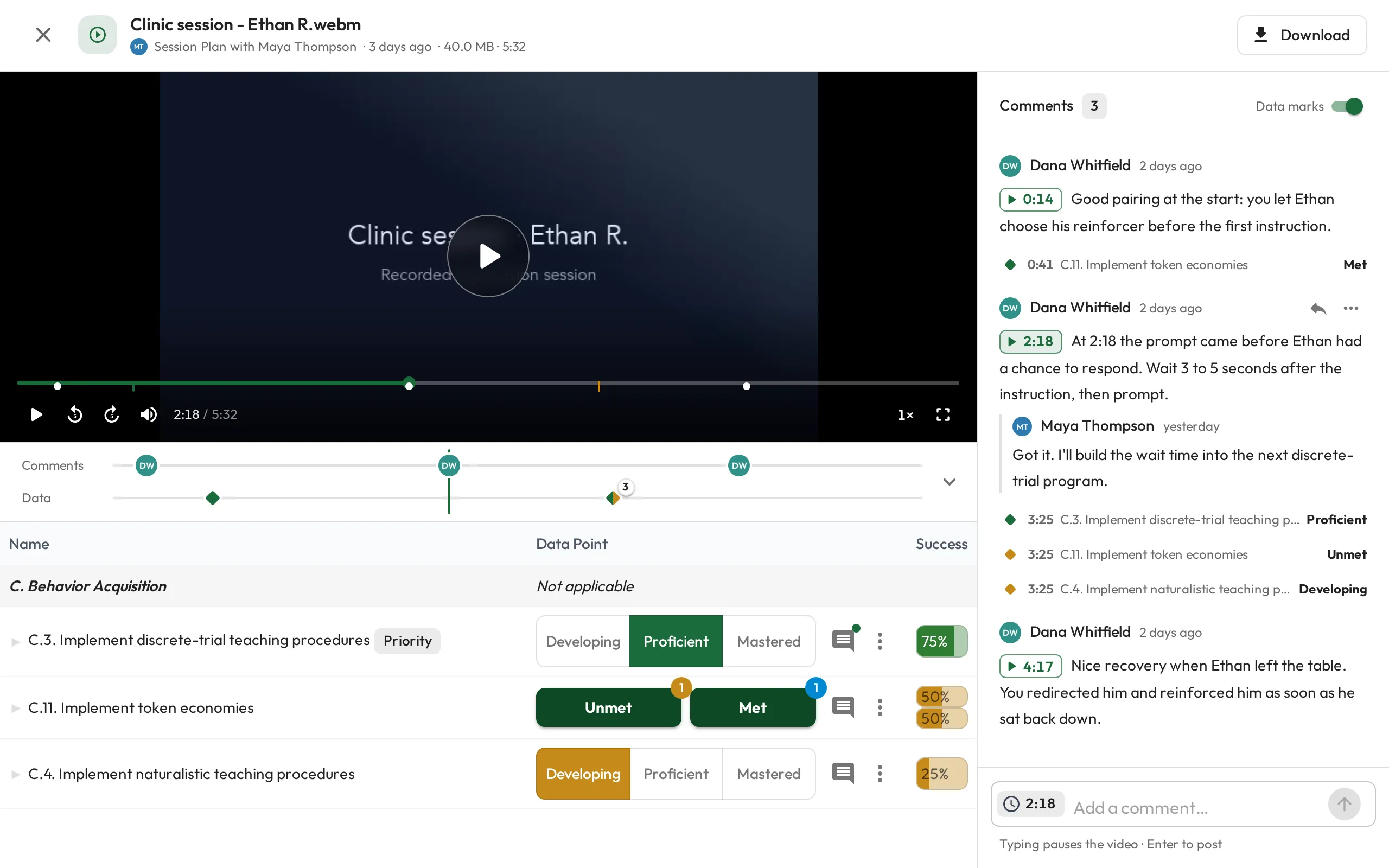
Section titled “Review a recording while you take data”If a session recording is attached to the Session Plan, open it from Attachments on the Details tab. Until the Session Plan is done, anyone who can see its scores sees the skills table under the video, and whoever records them can score as they watch. Once the video has loaded, each data point recorded there is marked at its moment on the video: in a Data lane on the timeline (not on a phone) and among the comments beside it. Click a mark to jump back to that moment, or turn off Data marks to list only the comments.
Marks follow the same sharing as scores, so the Observee sees them only once results are shared.
If someone else has the same recording open, you watch it together.
Skills with child skills
Section titled “Skills with child skills”When a skill has child skills (for example the steps of an RBT Task List item beneath it), you can work at whichever level fits:
- Use the children as a checklist to guide your judgment of the parent skill, or
- assess the skill directly without scoring each child.
Scoring every child skill is optional: the children are there to help, not to add work. A parent whose assessment type is Composite has no score of its own and shows Not applicable; score its children instead.
Notes and visibility
Section titled “Notes and visibility”Session Plans support several kinds of notes, each with its own visibility, so you can be candid where you need to be and transparent where it helps.
| Note type | Written | Visible to |
|---|---|---|
| Agenda | Before the session | Everyone: shared so all come prepared |
| Observation Notes | During or after | Shared when you choose to, during or after the session |
| Supervisor Notes | Until the Session Plan is done | Anyone who can edit the Session Plan: the assigned Observer, anyone else who supervises the Observee, admins, and the Observee too on a Collaborative Session Plan, from its edit page rather than the session workspace |
| Personal Notes | Any time | Only you |
Share notes and data with Observee sits on the Details tab and can be changed at any point, not only once the session is done. Turn it on and the Observee sees your notes and each score as you record them, which suits a session you are working through together. Completing the Session Plan shares the results either way, as long as it isn’t the Observee who completes it. Re-opening a Session Plan from the workspace leaves sharing as you set it; Re-open on its edit page turns sharing off.
A Self-assessment has a single Notes tab, since there is nobody to share with, and a BACB Independent Session has no Supervisor Notes.
Question sets
Section titled “Question sets”Notes carry a conversation well and compare badly. When you want the same few things asked at every session, a Session Plan can also carry question sets: short groups of questions that record their answers as data, so a rating can be read as a trend across sessions instead of re-read one paragraph at a time.
A question set is placed in the Session Plan’s agenda while it is being planned, and appears in the workspace above the agenda and notes. Both of you fill in the same shared answers, each one saving on its own, and an answer the other person gives shows up within a few seconds. The workspace can’t add or remove question sets; to change what it asks, even once the session is under way, choose Edit followed by the type’s name (Edit Session Plan on the default type) from the Complete button.
Working together
Section titled “Working together”Both of you can have a Session Plan open at once, and each side’s changes appear on the other within a few seconds. Whoever else is in it shows at the top, with an “is editing” chip on the card they are working in. Personal Notes are yours alone, and never say where you are working.
Recent History
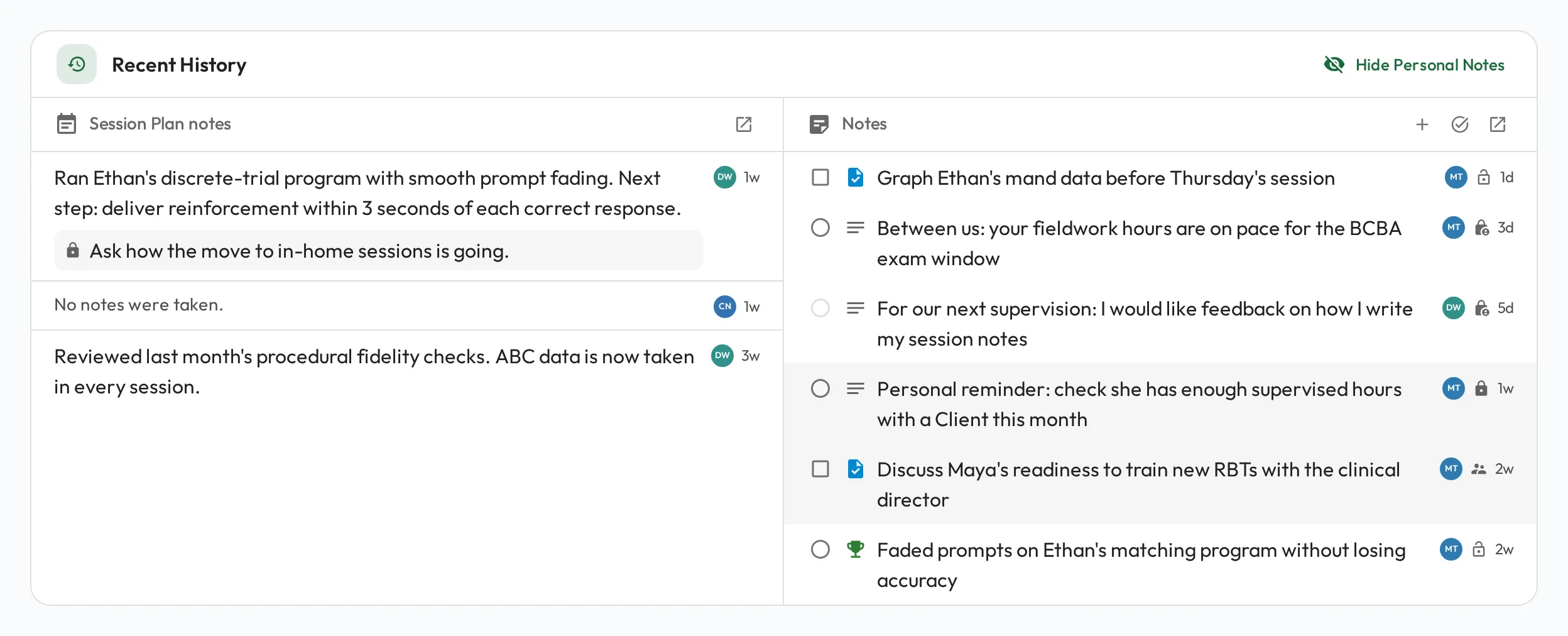
Section titled “Recent History”The session view keeps the person’s history one glance away, in two columns: Session Plan notes from past, completed sessions on the left, and notes, tasks, and wins on the right. On a phone the two columns become tabs.
Work the right column as the conversation covers each item:
- Tick it off. Complete a task or commitment, or mark a note or win as discussed. The row leaves the column unless you are showing done notes. A greyed tick-off is on a note only its author can change.
- Click a row to read it in full. Rows show the first couple of lines. One you wrote yourself opens ready to edit while the Session Plan is open; the rest open read-only.
- Add a note with the + in the column header, without leaving the session. It starts on the other person in the session, and you can switch the name on it to yourself or to anyone you have a relationship with. It is greyed out when you are not one of the two people in the Session Plan.
- Show done notes with the check icon beside the +, to bring back the ones already dealt with. If everything is done, the column reads “No open notes here.” with the same button below.
- Click a past Session Plan to preview its notes and scores without leaving the session; Open Session Plan in the preview opens it in a new tab.
Once the Session Plan is done, the + and the tick-off controls grey out so the record stays as it was. If it has an Observer and you are neither them nor the Observee, editing, tick-off included, is locked until you choose Force unlock. Reading is never locked.
Whose notes you see
Section titled “Whose notes you see”The right column always means the same thing: the notes on the person being observed, plus whatever the two people in the Session Plan keep with each other.
| Who is looking | What the column shows |
|---|---|
| One of the two people in the Session Plan | The observed person’s notes, your own private notes about the other, and anything just between you two. A note you share only with someone outside this Session Plan stays out. |
| Anyone else | The observed person’s notes only. Your own private notes about them, and anything just between you and them, stay on their profile. The column says so at the top: “Private notes between the participants of this Session Plan are not visible to you.” |
Reading a row
Section titled “Reading a row”- The initials circle names whose record the note sits on, since the column covers both people. Hover it to see whose profile it is on.
- The small icon beside it says who can see the note. Hover it for the full answer.
- A tinted row is one the person opposite cannot see, so you know before you say it out loud.
- Hide Personal Notes in the card header takes all of that off screen while you share: your own private lines, and notes shared only with Supervisors. Notes both of you can already see stay put.
The lifecycle
Section titled “The lifecycle”A Session Plan usually moves through a simple flow (planned, run, then completed), and can be cancelled along the way or reopened after it’s done:
flowchart LR
  Pending -- "first edit" --> Started
  Started -- "complete" --> Done
  Pending -- "complete" --> Done
  Done -- "reopen" --> Pending
  Pending --> Cancelled
  Started --> Cancelled
- Pending: planned but not yet started. The first edit in the workspace starts it.
- Started: in progress; you’re capturing observations and notes.
- Done: completed. Until someone signs it, its details, such as the date, time, Observer or custom fields, can still be changed from the Session Plans list. Signing it off is a separate, optional step. Until it is signed, its status can also be changed from the list.
Completing and reopening
Section titled “Completing and reopening”Completing a Session Plan marks it as done and locks in the observations you recorded. Completed observations feed the person’s progress, and completed BACB Session Plans feed the BACB Fieldwork Report and the BACB Ongoing Supervision Report.
Signing off
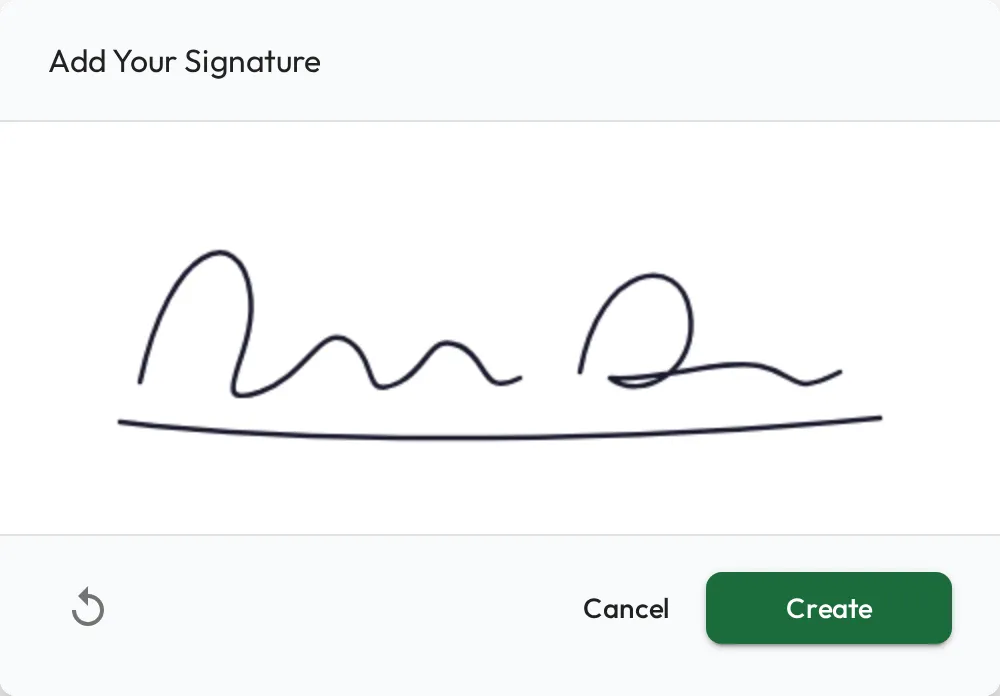
Section titled “Signing off”Once a Session Plan is done, the Observer, the Observee, and anyone else who opens it, as an additional signer, can each add a digital signature to confirm the session took place and the record is agreed. A Self-assessment has no signatures. Signing is optional and leaves the Session Plan’s status as it is. A signature stays on the record unless its signer revokes it or the Session Plan is reopened. A signature locks the record until the Session Plan is reopened, apart from sharing and your Personal Notes, and a stamp icon beside its status in the Session Plans list shows it is signed.
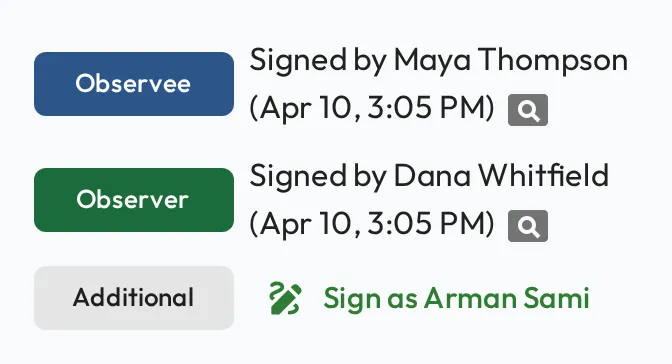
Signatures are drawn directly on a signature pad, so sign-off works the same on a laptop, tablet, or phone.
Reopening
Section titled “Reopening”If you need to change a signed Session Plan, or anything the Session Plans list doesn’t edit, such as a score or the Observation Notes, you can reopen it. Complete it again, then sign off.