
Quick Session Plans
For supervisors who work with the same RBTs and trainees every week, starting a session is nearly instant. Even when you haven’t had time to prepare, a supervision can begin in seconds in a well-prepared state: the session opens with your past notes at hand and the right skills already lined up.
Start a Session Plan from the dashboard
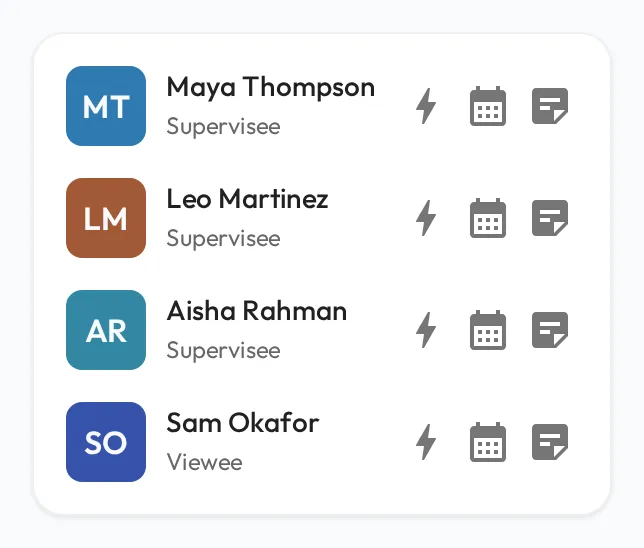
Section titled “Start a Session Plan from the dashboard”Everyone you have an immediate relationship with appears in My Direct Team on your dashboard. Each row says how they relate to you: Supervisee for someone you supervise, Supervisor for someone who supervises you, Viewee or Viewer for a viewer relationship, and Peer when you supervise each other.
| Action | Description |
|---|---|
| Quick Start a Session Plan | Creates the Session Plan and drops you straight into it, timed from now for an hour, with no form to fill. With a Supervisee, Viewee or Peer, you are the Observer, they are the Observee, and up to five of their priority and required skills are pre-selected. With your Supervisor or Viewer the seats swap and no skills are pre-selected. |
| Schedule a Session Plan | Opens the planning form pre-filled with you both, for a session at a later time. |
| Add a Note | Jots a quick note against the person, waiting for you in your next session. |
If a Session Plan between you two was created recently or is scheduled within 12 hours of now, a quick start asks first: Reuse Session? offers Resume Session to open that one, or Create Session for a new one.
Clicking a person’s name or avatar opens their profile.
Quick Actions
Section titled “Quick Actions”The Quick Actions card on your dashboard holds shortcuts for what you do most:
- Schedule a Session opens a blank planning form.
- Add Independent Session opens the planning form for a new BACB Independent Session, for logging your own independent fieldwork hours, when your person type has the BACB certification fields, by default Staff. It starts as Done, with you as both Supervisor and Supervisee, and nothing is saved until you choose Create.
- Start Self-assessment and Request Feedback, below.
- BACB Fieldwork Report opens the report, on a larger screen, when your person type has the BACB certification fields.
Each shortcut shows only when you can use it.
Assess yourself
Section titled “Assess yourself”Start Self-assessment creates a Self-assessment where you are both the Observer and the Observee, pre-loads every skill assigned to you, and drops you straight into it to record your own observations. It runs entirely on your side: nobody else is added, and it stays off the Upcoming Session Plans card, including your own, since a self-assessment is not supervision work waiting on anyone.
If you already have one you have not finished, Self-assessment in progress asks whether to Continue it or Start new.
Request feedback
Section titled “Request feedback”Request Feedback is for when you want a supervisor or another BCBA to look at your work, such as a recorded session with a Client. It opens a new Session Plan with you as the Observee and yours to edit. Describe the ask in the Agenda, pick the skills you want assessed, and choose your Observer.
A date is optional, since a feedback request is answered whenever your Observer has time. Add a start time and the button becomes Create & Send Invite, which emails both of you; Create Only saves it without an invite.
It starts shared, so you see your Observer’s notes and scores as they land. To wait for the finished assessment instead, turn Share notes and data with Observee off on the Properties tab before you create it: afterwards it is no longer yours to change.
You can open it again later to attach evidence such as a recording or a document. It shows up in your Observer’s Upcoming Session Plans and Session Plans list, where they assess the skills you picked, the same as any collaborative Session Plan.