
Staff profiles
A person’s profile is the single place to understand and manage their development. To know anything about an RBT, trainee or BCBA, what’s expected of them, where they stand, and the context behind it, start here. Open it from Staff, or from any person’s name.
The tabs
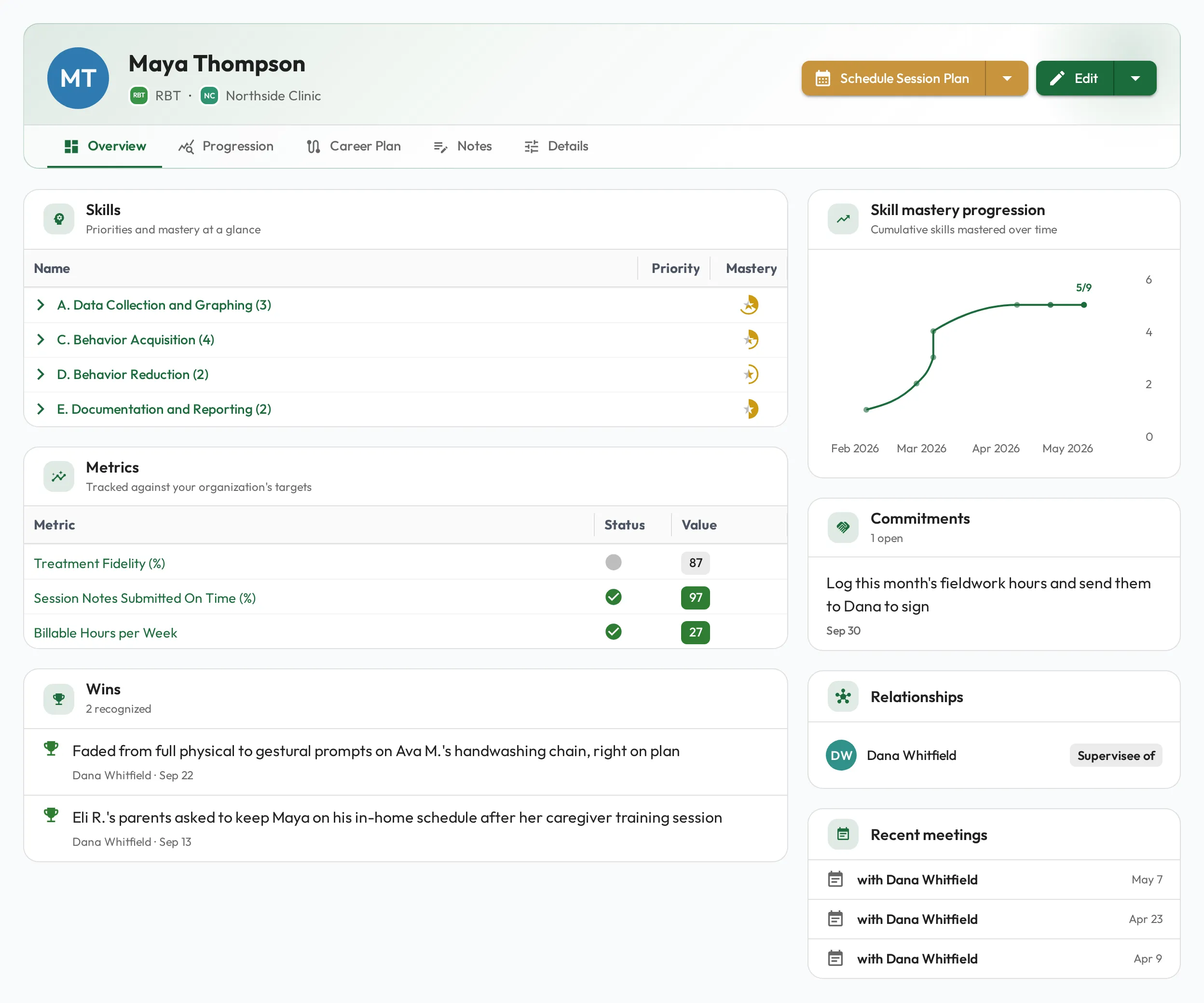
Section titled “The tabs”| Tab | What it holds |
|---|---|
| Overview | Skills (priorities and mastery at a glance), Metrics and Wins, beside Skill mastery progression, Commitments, Relationships and Recent meetings |
| Progression | The editable Skills grid, where you set priorities and assumed proficiency, and the Metrics grid |
| Career Plan | The Development plan and the Skills roadmap (see Career plans) |
| Notes | Notes, tasks, commitments and wins (see Notes) |
| Details | About, Custom fields (for Staff, the BACB certification fields), Profile (email, pronouns, preferred feedback, personal goals) and Attachments |
A Guardian/Parent’s profile has no Skills card on the Overview and Progression tabs (see Staff types). If you can open a colleague’s profile but can neither edit it nor read their observations, only the Notes tab is available: the other tabs are disabled and the header reads Limited access. A Viewer of the person sees every tab.
What a profile brings together
Section titled “What a profile brings together”Expectations
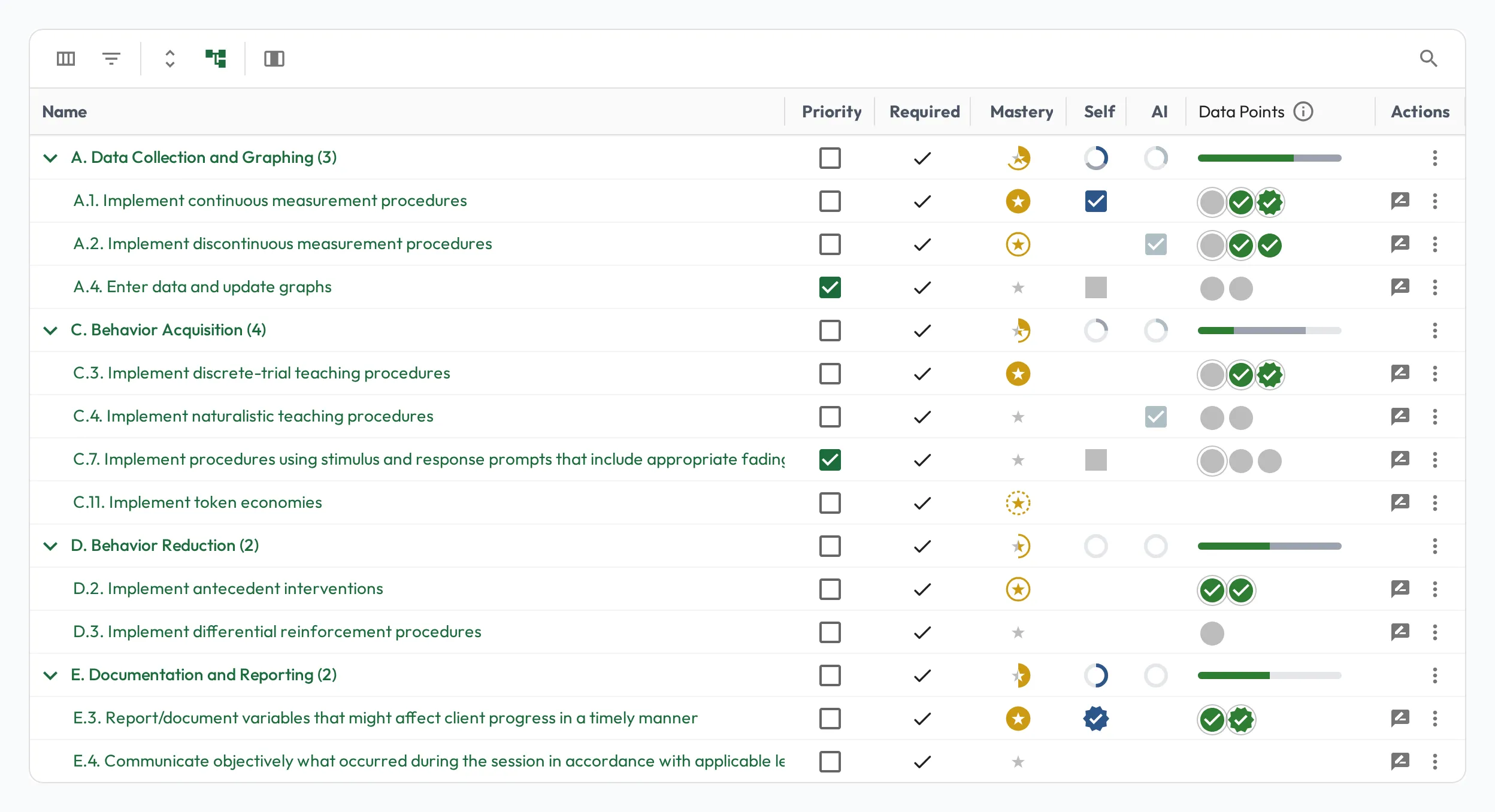
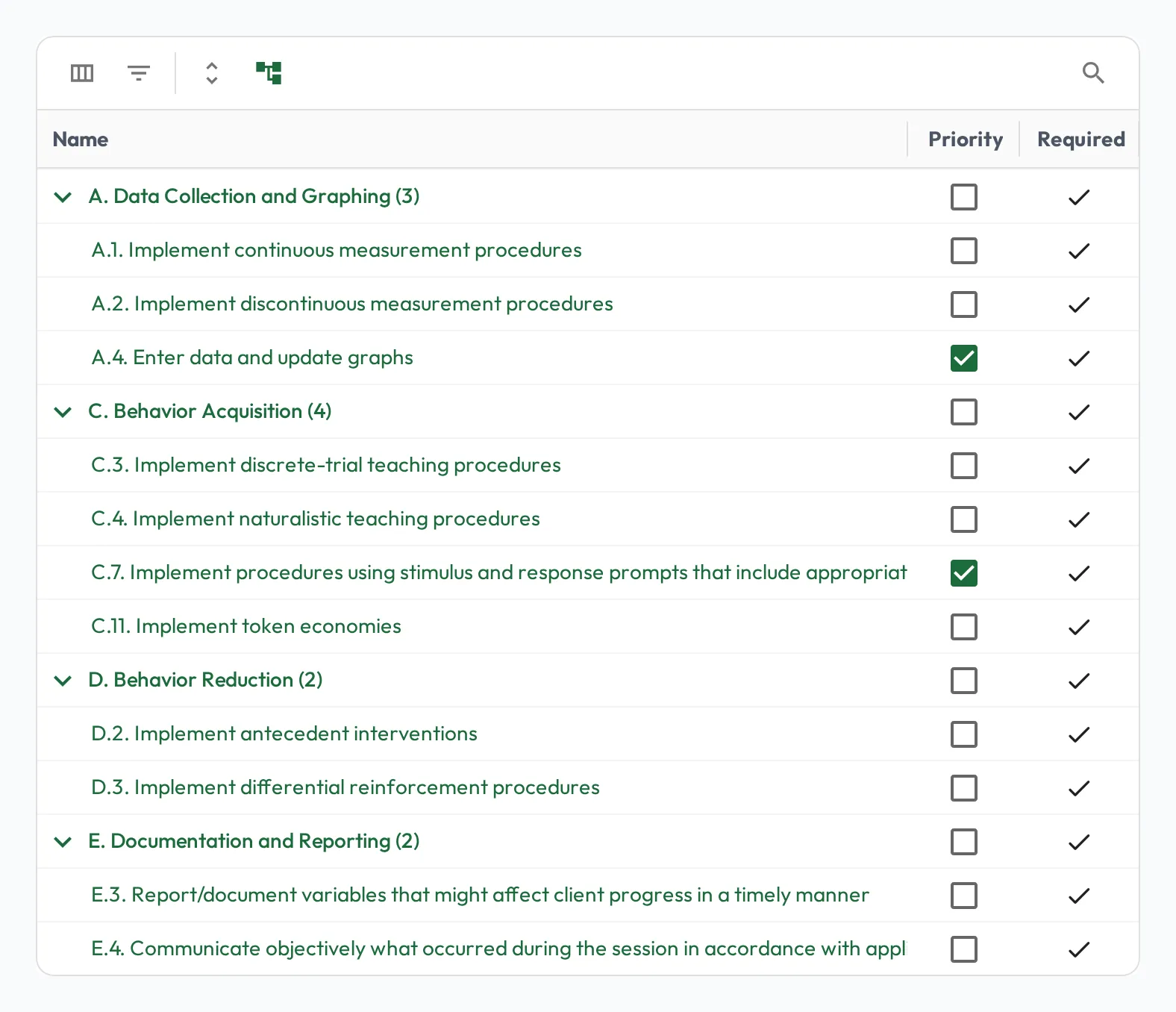
Section titled “Expectations”The Progression tab lists every skill the person’s roles expect, such as the RBT Test Content Outline (3rd Edition) for an RBT Candidate. Each skill shows whether the role marks it Required and whether it is a Priority for this person, so it’s always clear what matters most. Skills added for growth beyond the role sit on the Career Plan tab (see Career plans).
Skill progress
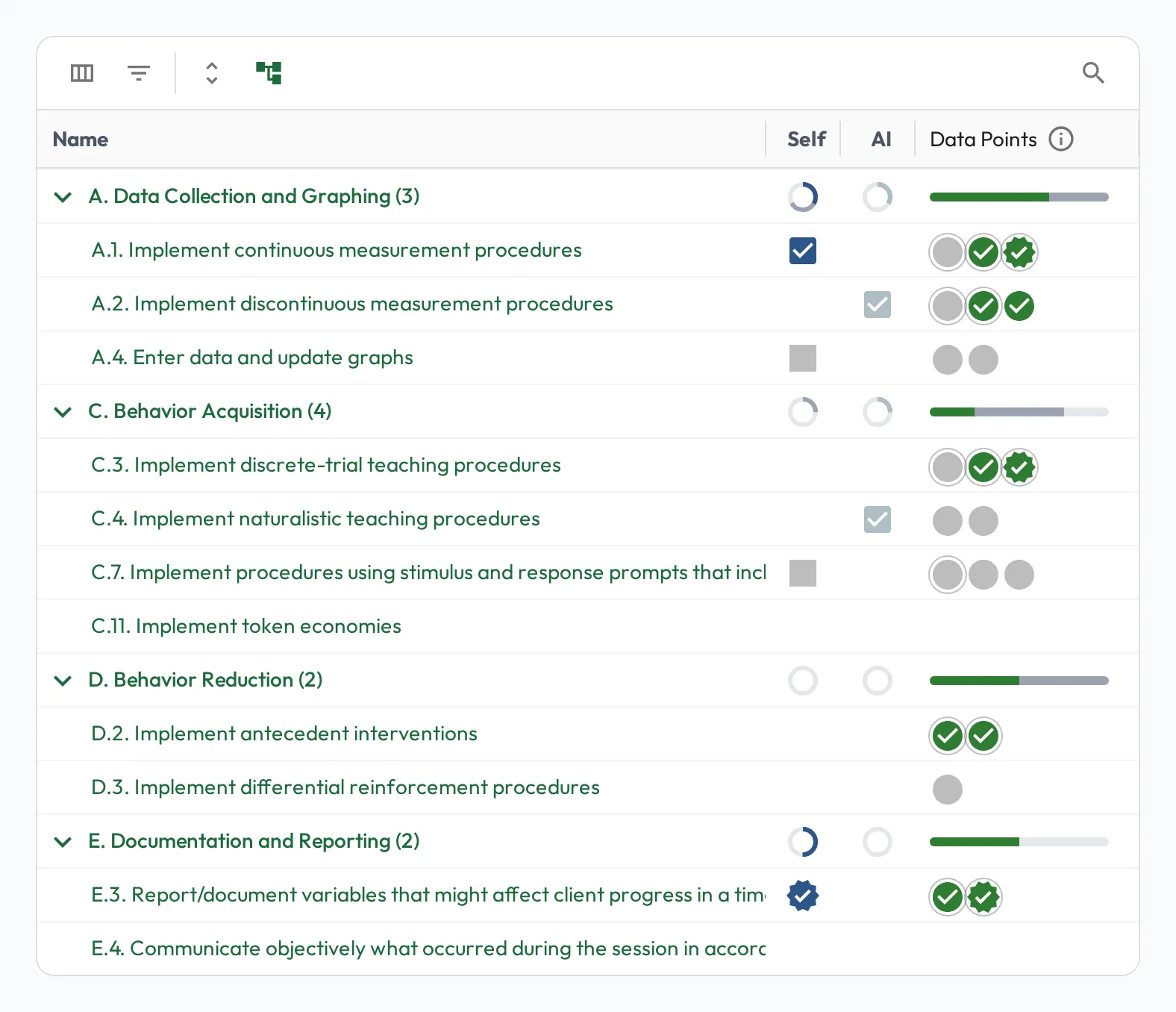
Section titled “Skill progress”The current level and mastery for each skill, built from discrete observations. Observations come from three sources, shown side by side for every skill:
- Data Points: observations recorded by someone else, such as a Supervisor during a Session Plan or as a quick observation. These drive mastery (see Calculating mastery).
- Self: the person’s own self-assessments.
- AI: practice sessions graded by AI Coaching.
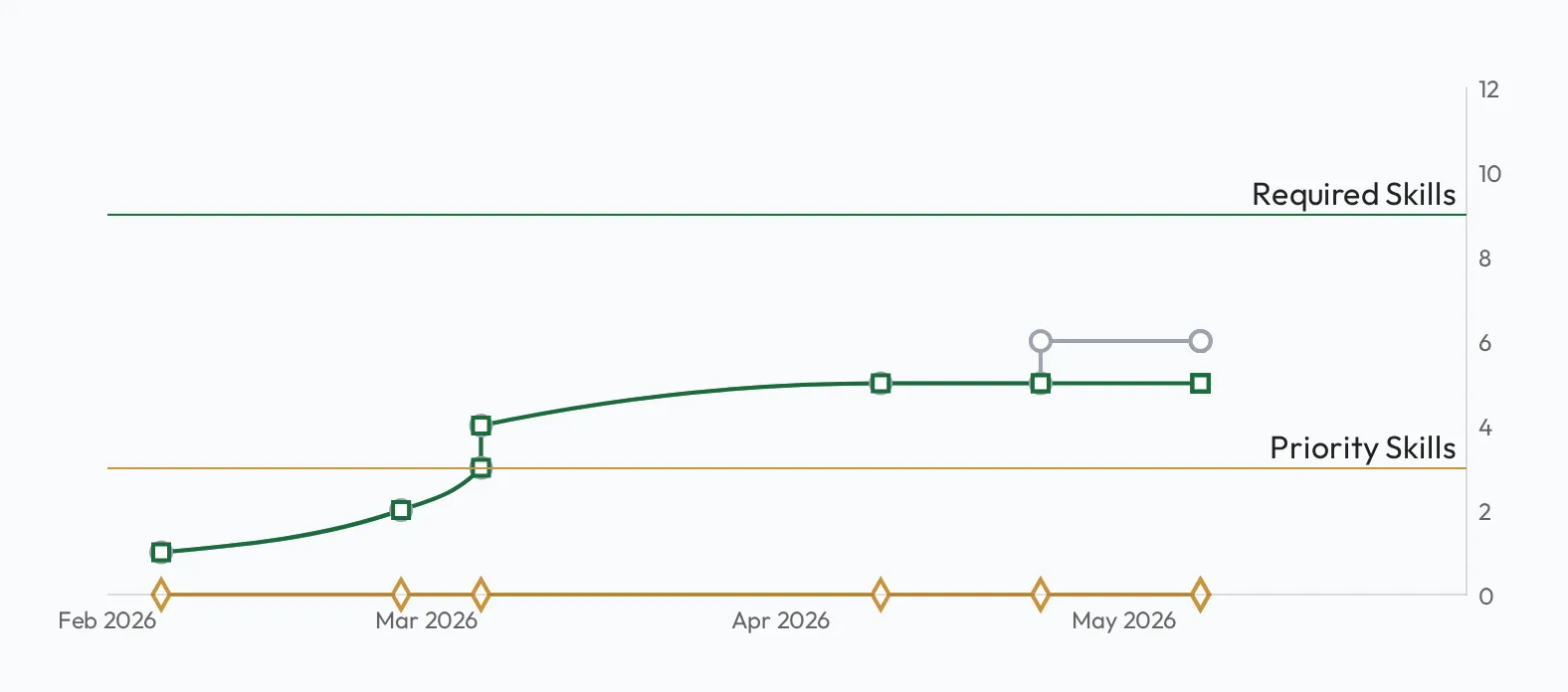
As observations accumulate into mastery, the skill mastery progression chart shows the person’s development velocity at a glance. The Overview tab’s Skill mastery progression card plots their required skills.
Skills practiced outside a role
Section titled “Skills practiced outside a role”A person can be observed on skills no role assigns them, for example through AI Coaching practice. The Progression tab hides those results by default. The globe button in the Skills grid’s toolbar folds them in, greyed and tagged Not assigned; its tooltip reads Show skills observed outside their roles. If the person has nothing assigned at all, they show by default.
Priority and the Assume proficient action are inactive on these rows. To make the skill a real expectation, assign it through a role or their career plan.
Role metrics
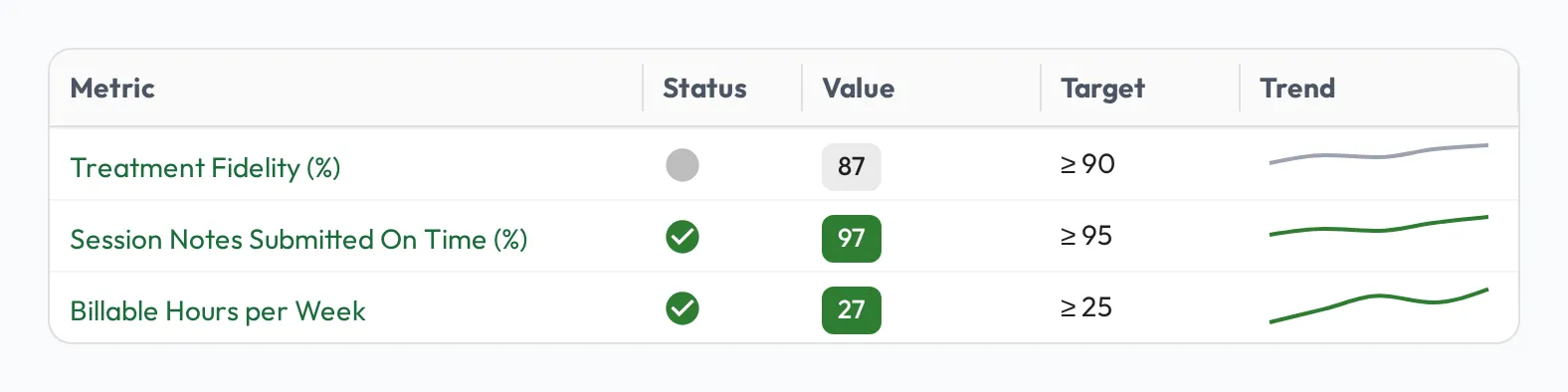
Section titled “Role metrics”Continuous, data-driven measures assessed automatically from your data, such as billable hours or treatment fidelity, shown with a status and a trend sparkline alongside skills. These complement skill observations: metrics for what can be measured, observations for what needs a supervisor’s eye. See Role metrics.
Notes and career plan
Section titled “Notes and career plan”The profile also carries the person’s notes, the notes, tasks, commitments and wins captured over time, and their career plan, the directly assigned skills and open-ended development plan for growth beyond the role, such as an RBT working toward BCaBA.
Prioritizing skills
Section titled “Prioritizing skills”Not every skill matters equally at every moment. On the Progression tab you can tick Priority on the skills to focus on for this person right now, such as the prompting and data collection items a new RBT is still building, so supervision and Session Plans center on what will move the needle without losing sight of the rest. Choose Save on the Skills card to keep the change. This is the per-person complement to a role’s Required skills: the role sets the baseline, and the profile tunes the focus for the individual.
Using the profile
Section titled “Using the profile”The profile is where day-to-day supervision starts. From it you can:
- Take a quick observation on a skill. Choose Record Observation on a skill’s row to record what you just saw, no Session Plan required (see Share drafted observations).
- Capture notes and jot successes. Add context, tasks, and wins as they happen so nothing is lost between sessions (see Notes).
- Prioritize the skills to focus on. Tune the person’s focus so supervision centers on what will move the needle right now.
- Monitor progress and mastery. Watch levels, mastery, and metrics evolve, and recognize progress as skills reach the bar.
- Plan their career. Assign skills beyond the role and keep an open-ended development plan pointed at the next credential (see Career plans).
- Summarize progress. Choose Summarize Progress from the Actions menu to turn a period’s progress into a snapshot for reviews and check-ins.
- Schedule a Session Plan. Choose Schedule Session Plan from the Actions menu, after checking what’s strong, what’s thin, and what to focus on next (see Planning a Session Plan).
For views across everyone at once, open Reports, under Reporting in the sidebar, for reports such as Skills Heatmap, Team Skills, Role Mastery and Commitments.