

Question Sets
Observation Notes are good for a conversation and poor for a trend. A question set asks the same short set of questions every time, so the answers can be compared week to week instead of re-read one paragraph at a time. A supervision check-in might ask an RBT to rate their confidence with a new program, whether the Client’s sessions started on time this week, and what got in the way of running programs as written.
A question set is a named, ordered group of questions. Questions live in a shared library, so the same question can appear in more than one question set.
Question sets are turned on for an organization on request. To turn them on, email our support team at support@behaviewhq.com.
Build a question set
Section titled “Build a question set”Question sets are set up from Question Sets in the side menu, by anyone allowed to manage them.
-
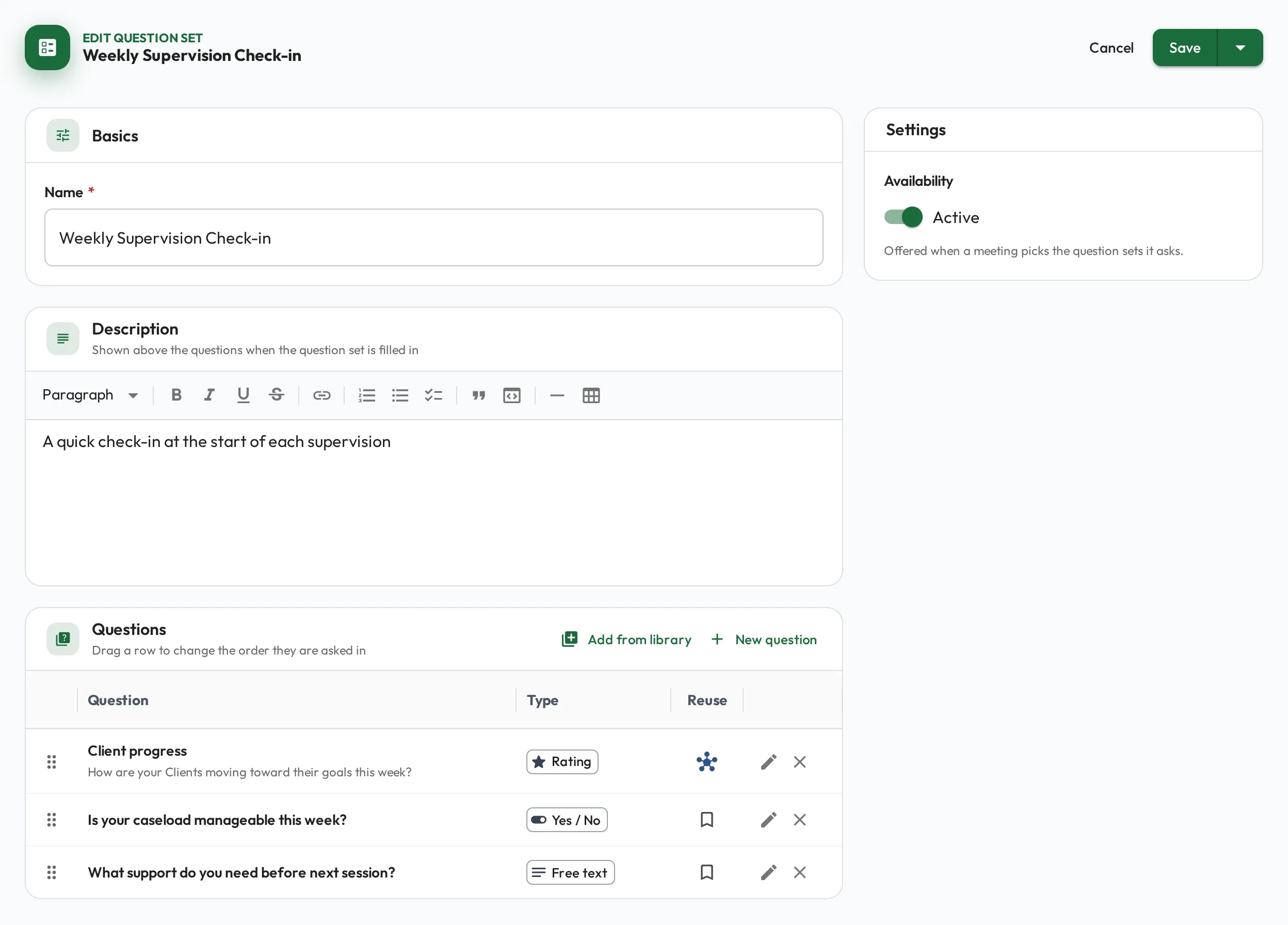
On the Question sets tab, choose Create Question Set and give it a name, and a description if it helps. The description is shown above the questions when someone fills it in.
-
Add questions. Add from library opens the question library so you can pick several at once. New question writes a new one, which joins the library as soon as its dialog saves, and this question set when you save the question set.
-
Drag a row to change the order questions are asked in.
-
Leave Availability on Active so Session Plans can ask it.
-
Choose Create (or Save). The questions, their order and Availability are kept only when you do.
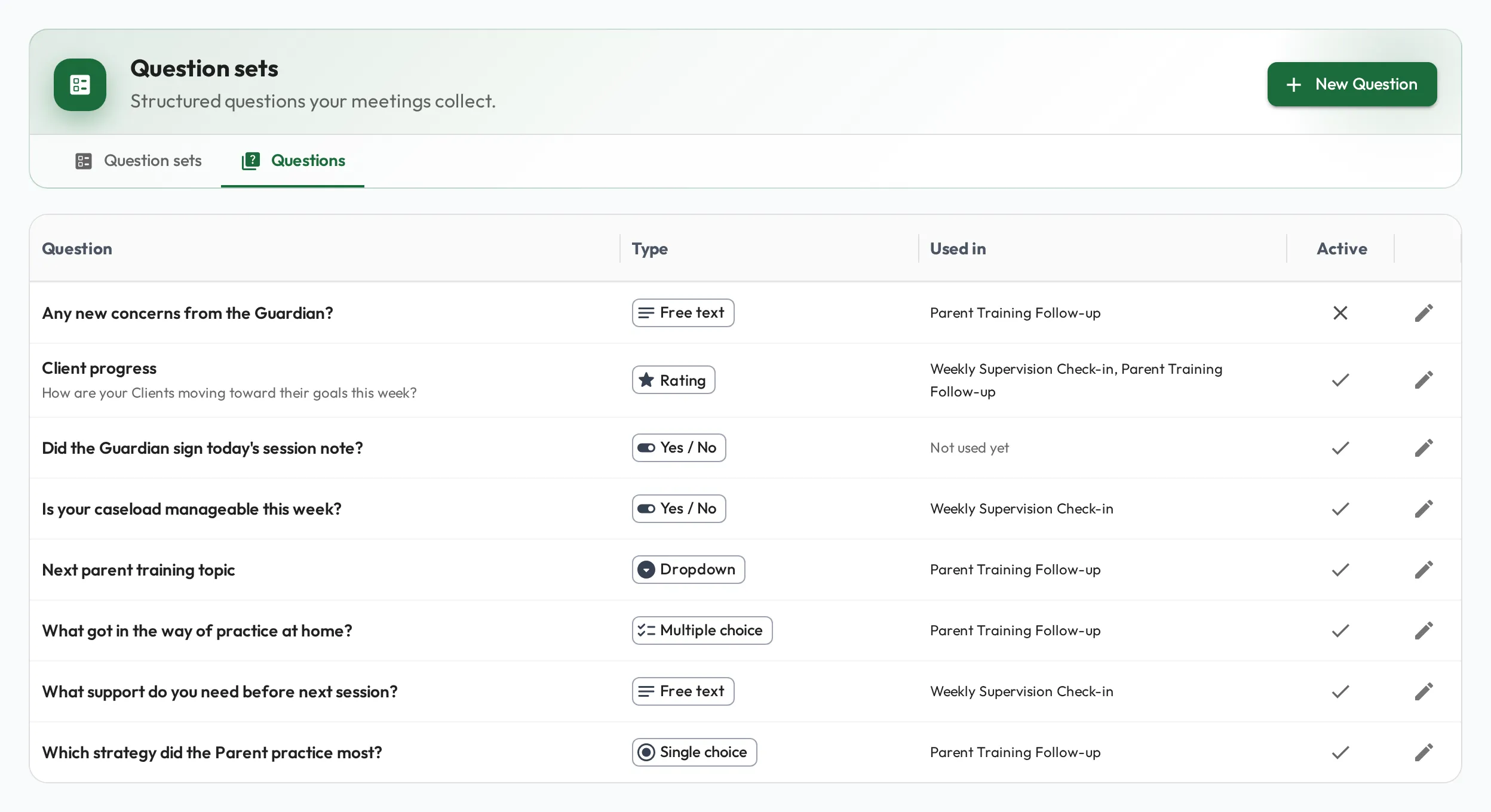
The Questions tab is the library itself. Each question shows its type, the question sets using it, and whether it is still Active, so you can see what an edit will affect before you make it.
Question types
Section titled “Question types”| Type | The answer |
|---|---|
| Rating | A whole number on a 1 to N scale, tapped |
| Single choice | One option from a list |
| Multiple choice | Any number of options from a list |
| Dropdown | One option, chosen from a drop-down |
| Yes / No | One of two buttons |
| Free text | A written answer |
Add a question set to a Session Plan
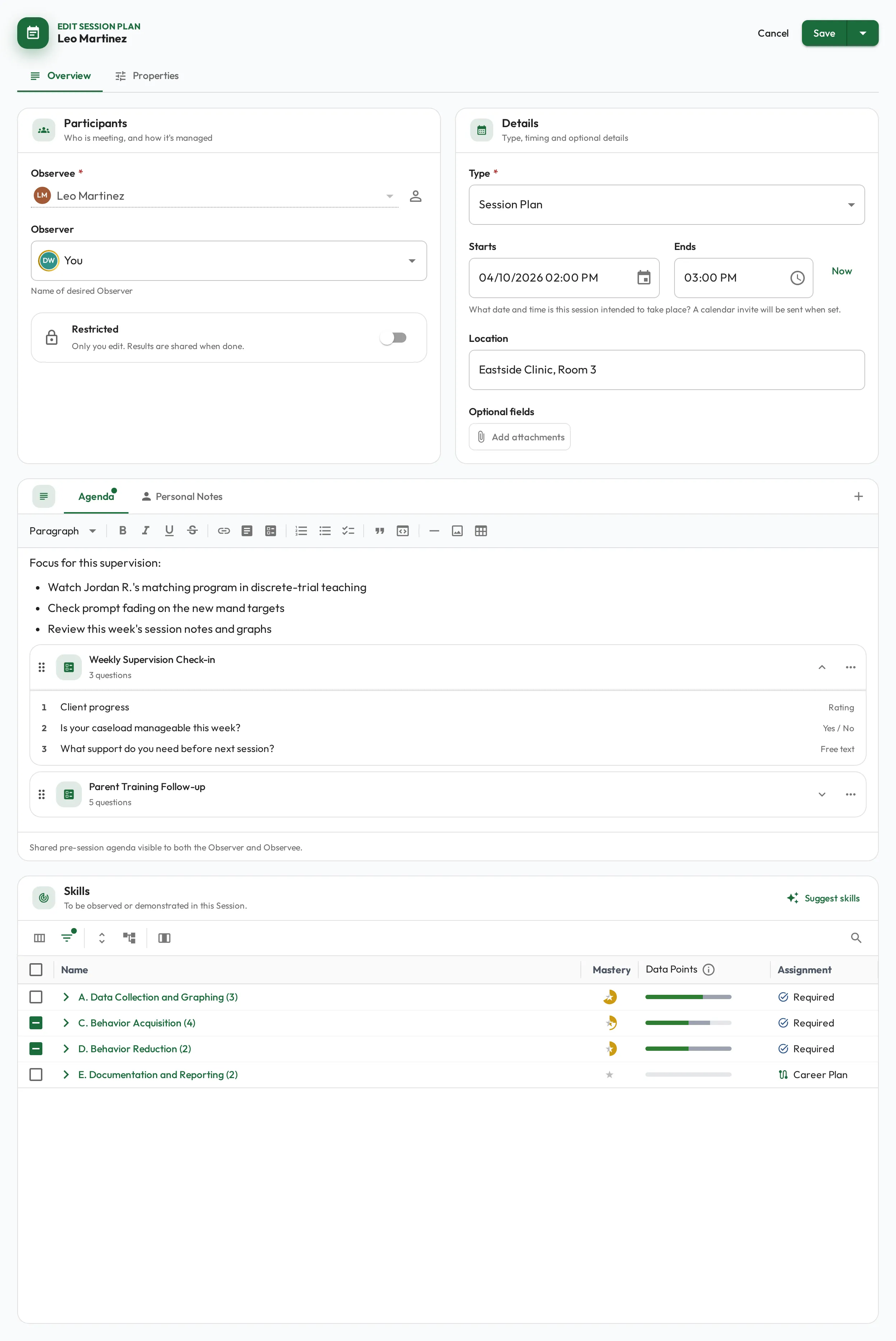
Section titled “Add a question set to a Session Plan”A question set lives in the Session Plan’s Agenda, as a card on its own line. In the session workspace every question set shows together above the agenda, in the order their cards sit.
Add one while editing the Session Plan.
-
Put the cursor in the Agenda where you want the question set asked.
-
Type
/and choose Question set, or use the toolbar’s Insert question set button. Both open the same picker. -
Pick the question set. Only Active ones are offered, and never one this agenda already places.
-
Drag the card by the handle on its left to move it earlier or later in the agenda.
-
Save the Session Plan. Nothing is attached until you do.
The card’s ··· menu opens the question set or removes it from the agenda. Choose the chevron to fold the questions open and read them without leaving the Session Plan.
Ask the same set at every Session Plan of a type
Section titled “Ask the same set at every Session Plan of a type”Rather than adding a question set Session Plan by Session Plan, put it in the type’s default agenda: every new Session Plan of that type, such as every BACB Supervision, then starts with it already placed. It is the same editor and the same picker, opened from Organization → Edit organization → Customization → Session Plans, with Add agenda or Edit agenda on the type; see Custom fields and domain types. Editing a type’s default agenda changes new Session Plans only; ones that already exist keep what they were given.
Fill one in
Section titled “Fill one in”Question sets appear near the top of the session workspace, above the agenda and notes, for the two people in the Session Plan. Every answer saves on its own as you go, so nothing needs submitting.
Both people fill in the same shared set of answers, and each answer is captioned with whoever first gave it when it was not you. An answer the other person gives while you have the Session Plan open appears within a few seconds, and something you are part-way through typing is never overwritten.
The agenda below them lists each question set as a compact row; choosing it jumps to that question set’s answers.
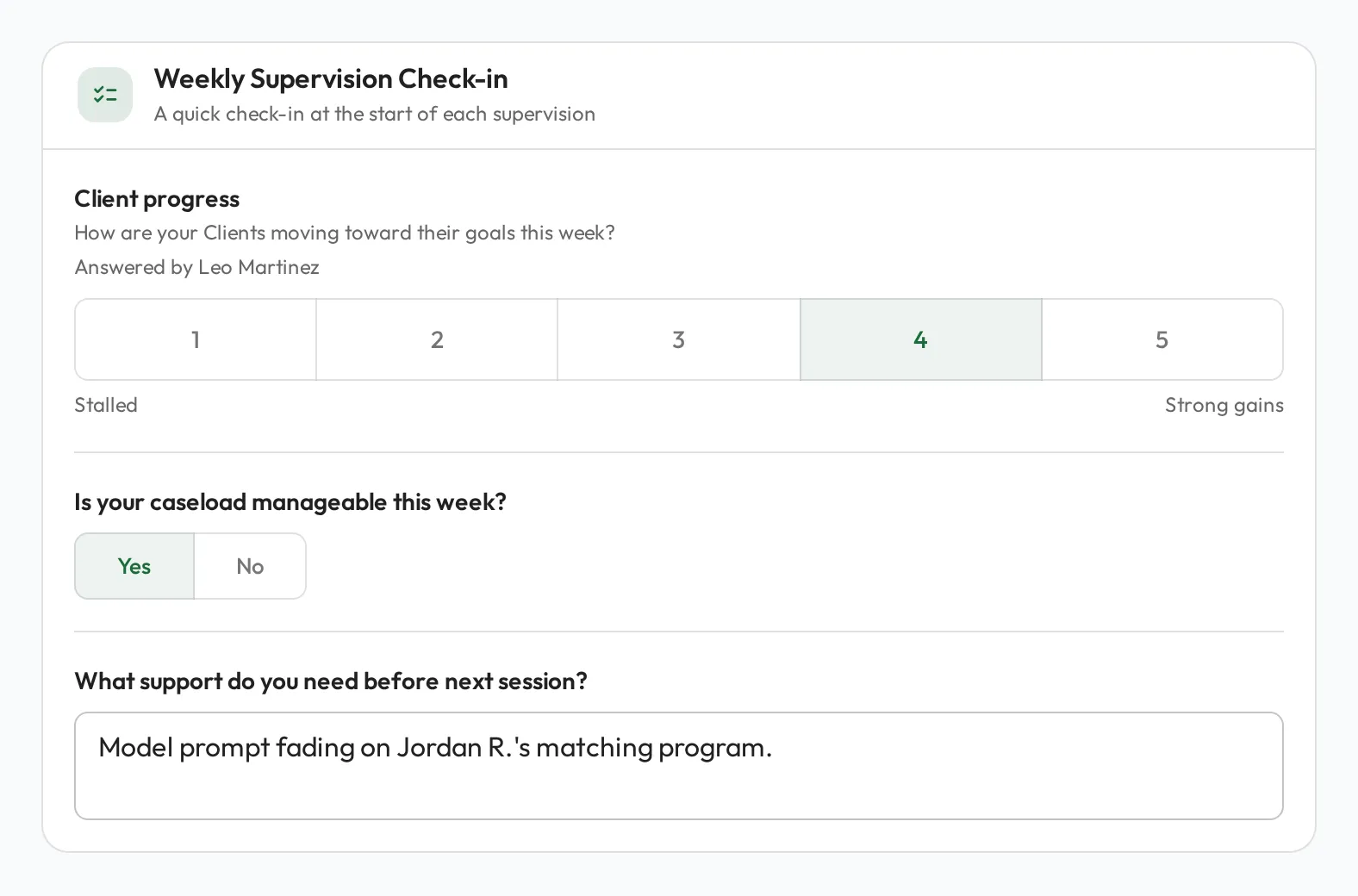
Anyone else who opens the workspace, an administrator or a clinical director reading a finished session, sees the same questions with the answers written out, and Not answered where there is none. The Session Plan’s own page lists what it asks in the agenda; open the workspace to read the answers.
Where the answers go
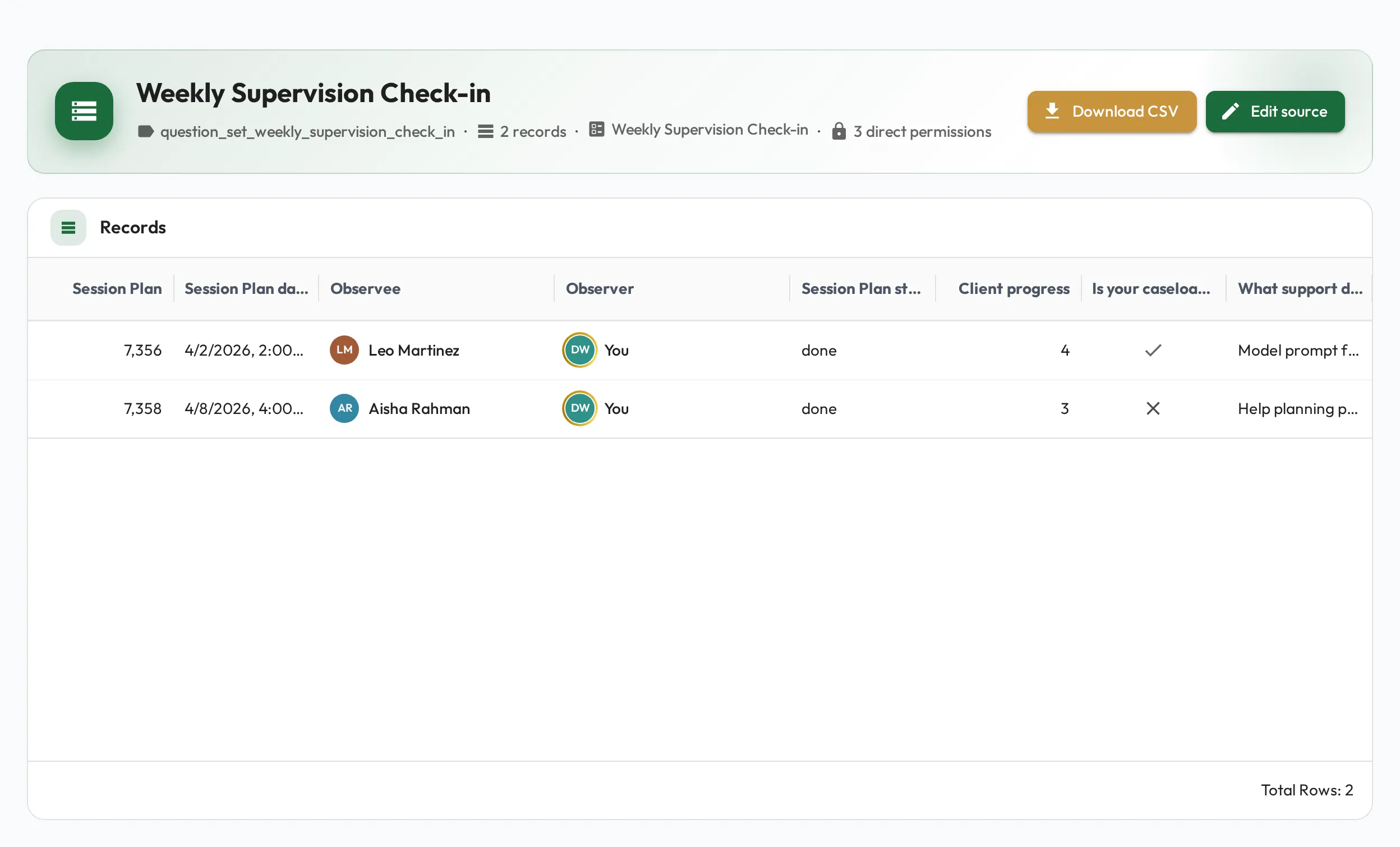
Section titled “Where the answers go”A question set gets a results table under Artifacts, created with the set by anyone who can manage Artifact Sources (see Who can build it): one row per Session Plan that answered it, one column per question, and a few more filled in from the Session Plan itself: Session Plan (its ID), Session Plan date, the Observee and Observer, and Session Plan status. It fills itself as answers are given, so there is no import or refresh step. Rows also update on their own when a Session Plan changes: reschedule one, change who it is with, or start or complete it, and its row follows.
Open it from the Responses card on the question set’s page, or from View results on the Question Sets list. The card names the table so you can query it in Reporting. Renaming the question set renames the table, when whoever saves the rename can manage Artifact Sources, but the name you use in SQL never changes, so a report built on it keeps working.
Each question’s column is named the same way. Leave Reference ID blank on a question and the name comes from its wording; fill it in and that is the name, which is worth doing for anything you expect to write Reporting SQL against. It has to start with a letter, hold only lowercase letters, digits and underscores, run to at most 63 characters, and be unique in your organization. Change it later and the column follows, but only while the table is still empty: once a Session Plan has answered, remove the results table and create it again to take the new name.
To see it on the Questions tab, open any column heading’s menu and choose Manage columns, then tick Reference ID. The same menu filters and sorts, on both tabs.
You manage this table from the question set. On the Artifacts pages:
- It can’t be uploaded to, emptied or deleted.
- No column can be added.
- The columns the question set writes carry an icon: a question mark for an answer, a linked-dataset mark for a detail filled in from the Session Plan. You can reorder these columns, but not delete them.
- You can rename a Session Plan detail column. An answer column takes its name from its question, so rename the question instead.
- A column no longer tied to a question has no icon, and you can edit or delete it.
Everything else that changes the table lives on the question set:
- Rebuild results table empties it and writes it again from the answers on record. Use it if a row ever looks out of date, or to pick up a change the table missed. It asks you to confirm first, because it discards rows of Session Plans that no longer ask this question set, anything edited into a row by hand, and values in columns no longer tied to a question.
- Remove results table deletes it and its rows. Answers keep being recorded, and Create results table on the Responses card builds it again from everything already recorded.
Both are in the Manage menu on the question set’s Edit screen, while the table exists.
Deleting the question set does not delete its results table. The table stays under Artifacts as an ordinary source, keeping every row, and its question columns become ordinary columns you can rename, retype or delete.
Deactivating a question set
Section titled “Deactivating a question set”Setting Availability to Inactive stops the question set being offered when someone adds a question set to an agenda. A type’s default agenda that already places it keeps placing it on new Session Plans until you remove it there. Session Plans that already ask it, and everything already answered, are untouched.
Retiring a question
Section titled “Retiring a question”Setting a question’s Availability to Inactive stops it being asked. It is no longer offered when a question set adds questions, and Session Plans stop putting it to anyone, including those whose question set still lists it. The exception is a Session Plan that already has an answer to it: there the question stays on the card, and the answer can still be changed while the Session Plan is open. A Session Plan that never answered it simply stops listing it.
The question keeps its place in every question set that asks it, marked Inactive on the question set’s page and in the agenda’s card, so you can see why it stopped appearing and turn it back on.
Removing a question from a question set is different: the question set stops asking it, and the answers already given to it there are hidden for as long as it is out of the question set. Nothing is deleted, and adding the question back brings them into view again. If any answers have been given, you are asked to confirm and pointed at marking the question Inactive instead. Removing a question never deletes it from the library.
Its column in the results table stays too, values and all, and becomes an ordinary column you can rename, retype or delete. Add the question back and it reconnects to that column only if the column’s Reference ID and JSON path are unchanged, and the question still has the Reference ID the column was named from (or, if it has none, wording that gives the same column name). Otherwise the question gets a new column and the old one stays where it is.