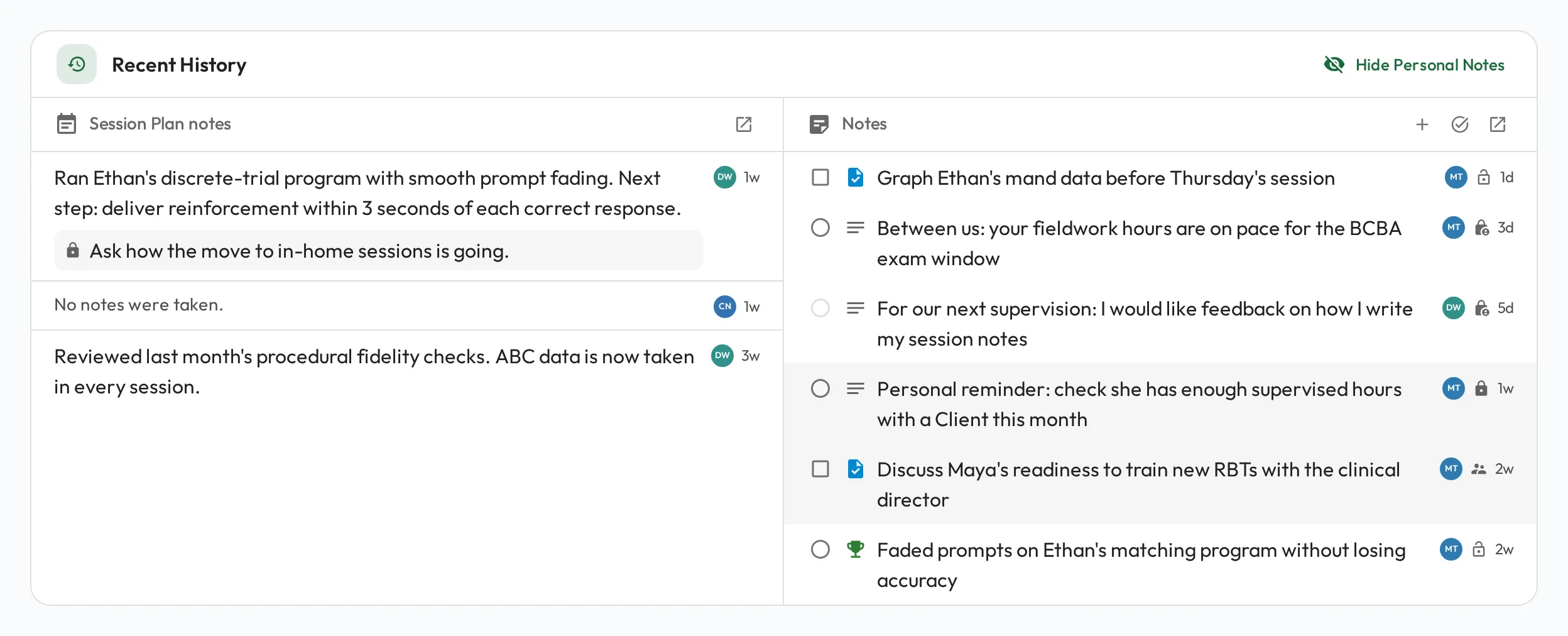
Notes
Notes are how you capture context between Session Plans: observations from a session, reminders, and moments worth recognizing. They keep supervision grounded in what actually happened rather than impressions.
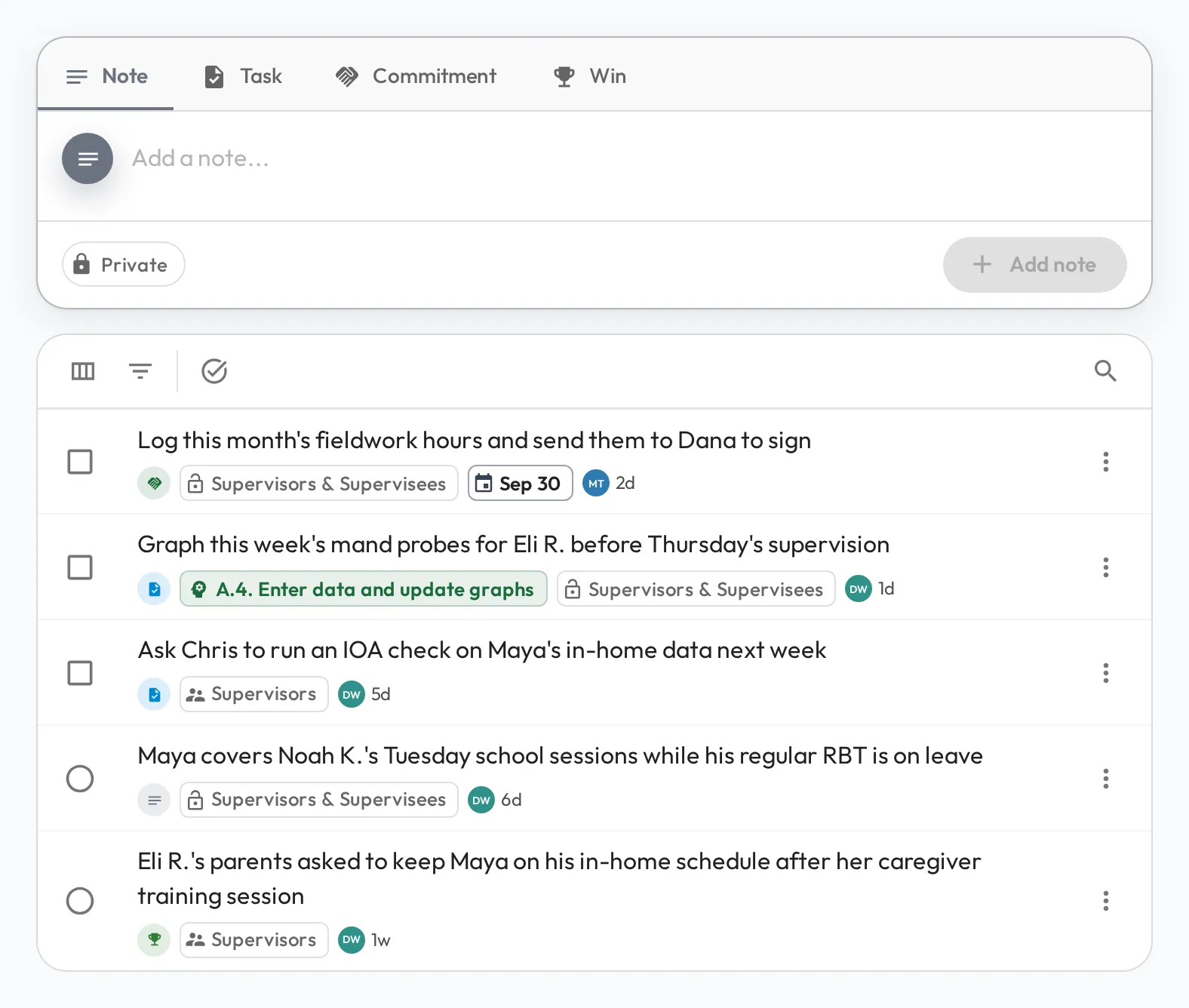
Note types
Section titled “Note types”- Note: a plain note or observation, such as how a client responded to a new reinforcement schedule.
- Task: an upcoming piece of work to follow up on, such as updating a graph before the next supervision.
- Commitment: something the person has committed to follow through on, such as practicing a prompt-fading procedure before the next session.
- Win: an achievement, success, or milestone worth recognizing, such as passing the RBT Competency Assessment.
Due dates and completion
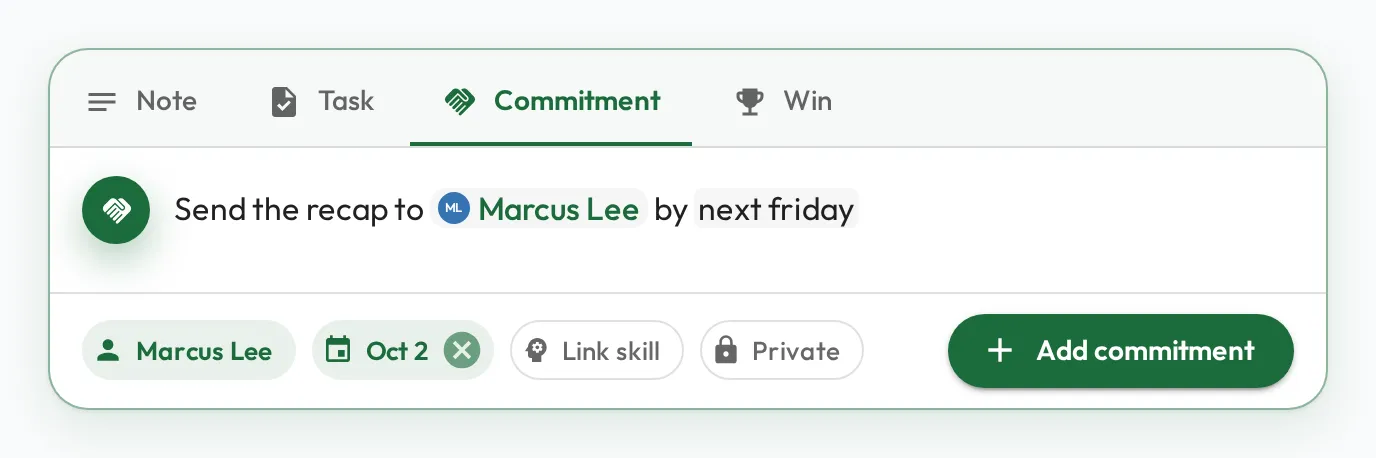
Section titled “Due dates and completion”Tasks and commitments can carry an optional due date. Set it with the Due date button that appears once you pick Task or Commitment. You can also just type the date as you write: enter a phrase like “next friday” or “in 3 days” and the Due date fills in automatically, with the phrase highlighted in the note. Type a date on a plain note or a win and it turns into a Task. A due date that has passed and isn’t yet done shows in red with a warning icon, so overdue commitments stand out.
Every note has a control to check off, shaped to what the note is. A task or commitment gets a checkbox and reads Completed, and its text is struck through once done. A plain note or a win gets a circle and reads Discussed, and its text only fades back: a win is a record you keep, not a chore you finish.
Linking a skill
Section titled “Linking a skill”A commitment can point at the skill it advances. Add one with the Link skill button when the type is Commitment, and the note then links straight to that skill, such as an RBT Test Content Outline (3rd Edition) item on prompting. Keep a commitment to one skill: if it spans several, split it into separate commitments so each stays specific.
Visibility
Section titled “Visibility”Each note has a visibility level so you control who can see it:
- Private: only you.
- Supervisor, Supervisee, or Subject: only you and the person the note is about. Nobody else sees it, not even their other Supervisors. The level is named after that person, so a note on your Supervisor’s profile reads Supervisor and one on someone you supervise reads Supervisee; otherwise it reads Subject. Use it with anyone whose profile you can open, whether or not you supervise them, to leave each other notes for the next time you talk.
- Supervisors: you and anyone who can edit the person’s profile, such as their Supervisors.
- Supervisors & Supervisees: the same people, plus the person the note is about.
On your own profile you choose between Private and Supervisors. On a colleague’s profile you can’t edit, you choose between Private and the two-person level; the others show as requiring write access.
Notes live on a person, not a team. A team’s page instead rolls up its members’ open commitments, and each one still follows its own visibility, so you only see what you’re allowed to. See Team commitments.
Natural Language Writing
Section titled “Natural Language Writing”The note box picks up a few shortcuts as you write, so you can capture a note without reaching for the mouse. Type them inline, the way you would say them.
| Type this | What happens |
|---|---|
@name | Files the note against a person. A picker opens as you type the name; choose someone and the note is filed against them. Available when you add a note from the dashboard or from a Session Plan’s Recent History, where a note can go to you or anyone on your direct team; not on a profile’s Notes tab. |
#type | Switches the note type. Type # and pick Task, Commitment, Win or Note from the list that opens; the first letter narrows it, so #t offers Task. The #type stays highlighted in the box while you write and is cleared when you save. |
| A date in plain words | Write the due date as you would say it, like “next friday”, “tomorrow”, or “in 3 days”. The Due date fills in for you and the words stay highlighted so you can see what was picked up. On a plain note or a win this also switches it to a Task. |
When you save, the @-mention, the #type and the date phrase are removed from the note. If you type two dates, the last one sets the due date, and only it is removed.
Where notes appear
Section titled “Where notes appear”You do not have to be someone’s Supervisor to keep notes on them. Open any colleague from the Staff list, go to their Notes tab, and add a private note, visible only to you, to capture what you want to remember or raise the next time you talk.
Notes live on the person’s profile, under the Notes tab, where you review, edit, and delete them.
- Edit a note you wrote: double-click it (or use its Edit action), then retype it, change its type, or adjust the due date, skill, and visibility.
- See more detail: each note shows as a single row. Use the Columns and Filters buttons above the list to bring back the type, due date, creator, and other details as sortable columns.
Notes also surface across the app, starting with My Open Notes on your dashboard. It lists up to five notes still open on your own profile, soonest due first, ready to mark off, and leaves out anything due more than seven days from now. The card title opens your Notes tab, and when more notes are open than it shows, a link at the bottom of the card does too.
The Overview
Section titled “The Overview”A person’s Overview shows their open commitments, plus a short list of what they recently completed, so you can see both what is outstanding and their momentum without opening the full Notes tab. A team’s page shows the open items for its members, rolled up by person. For an organization-wide view, the Commitments report lists everyone with a meter of their open and overdue commitments (a person with nothing outstanding shows as caught up) and expands each person to their items.
My Direct Team
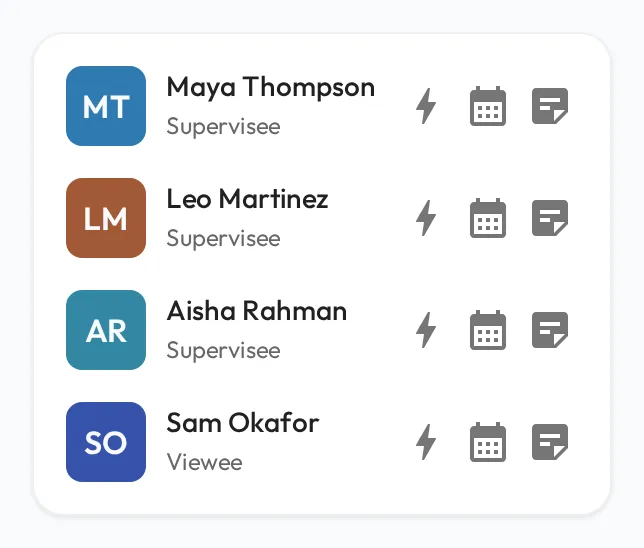
Section titled “My Direct Team”From the dashboard’s My Direct Team card, jot a quick note against anyone you supervise the moment something comes to mind, such as a prompting error you saw during an overlap. It takes seconds, and the note is waiting for you when you prepare the next supervision session (see Relationships). To file the note against someone else (yourself, or anyone else on your direct team) without leaving the box, type ”@” and pick their name from the list that appears.
Recent History in a Session Plan
Section titled “Recent History in a Session Plan”While running a Session Plan, the Recent History card lists notes in their own column, so the tasks and wins you captured are right there to discuss. The column covers both people in the Session Plan, including the notes you have been keeping on the other person. It lists what is still open; Show done notes in the column header brings back the rest. Click any note to read it in full, and one of your own to correct it; while the Session Plan is running you can add a note from that column too, for them, for yourself, or for anyone on your direct team.