

Account setup
The first time you sign in to a new Behaview organization, Account Setup asks a few questions and sets the organization up for your work: roles for your BCBAs, RBTs and trainees, BACB task lists from the Skills Library, and a demo person with sample data. You can change all of it later.
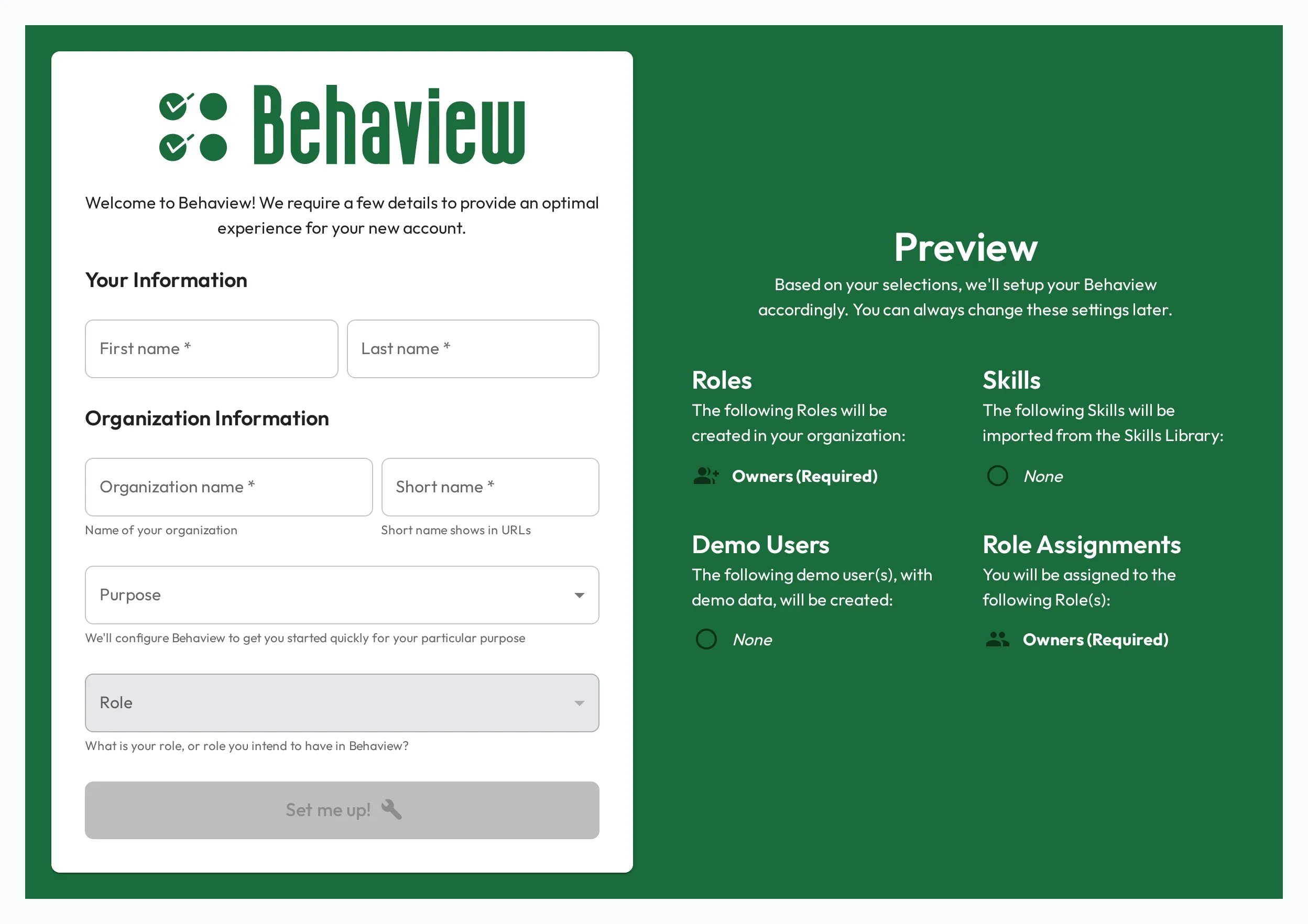
Fill in the form
Section titled “Fill in the form”-
Your Information: your First name and Last name.
-
Organization Information: the Organization name and its Short name, which shows in URLs. Both start from your name, so change them to your clinic’s.
-
Purpose: choose one or more of the purposes below.
-
Role: the role you hold, or intend to hold. The list opens once you choose a Purpose, and its options follow the Purposes you chose.
-
Check the Preview, which lists the Roles, Skills, Demo Users and Role Assignments the setup will create, then select Set me up!
Purposes
Section titled “Purposes”| Purpose | Imports from the Skills Library | Creates the roles | Demo user |
|---|---|---|---|
| I want to do Staff Observations/Overlaps | Behavior Technician Basics | Behavior Technician, BCBA, BCaBA, RBT | Demo Behavior Technician |
| I want to track or supervise BCBA Fieldwork | BCBA Test Content Outline (6th Edition) | BCBA Candidate, BCBA | Demo BCBA Candidate |
| I want to track or supervise BCaBA Fieldwork | BCaBA Test Content Outline (6th Edition) | BCaBA Candidate, BCBA | Demo BCaBA Candidate |
| I want to train and/or assess RBTs | RBT Test Content Outline (3rd Edition), RBT Competency Assessment (2026) | RBT Candidate, BCBA | Demo RBT Candidate |
The Behavior Technician role and each candidate role require the task list their Purpose imports, so everyone in them has those skills on their profile. The BCBA, BCaBA and RBT roles start with no skills. For what each task list holds, see BACB task lists.
Each demo user comes with demo data, such as sample Session Plans. Each demo candidate has a Certification ID, and the BCBA and BCaBA ones also have the rest of their certification fields filled in.
Roles you can choose
Section titled “Roles you can choose”You are always added to the Owner role, which the Preview lists as Owners (Required). The Role you choose can add you to one more.
| Role | Offered with | Adds you to |
|---|---|---|
| Owner / Administrator | Any Purpose | No other role |
| BCBA | Any Purpose | BCBA |
| BCaBA, RBT or Behavior Technician | I want to do Staff Observations/Overlaps | That role |
| BCBA Candidate | I want to track or supervise BCBA Fieldwork | BCBA Candidate |
| BCaBA Candidate | I want to track or supervise BCaBA Fieldwork | BCaBA Candidate |
| RBT Candidate | I want to train and/or assess RBTs | RBT Candidate |
| Other | Any Purpose | No other role |
What every ABA organization starts with
Section titled “What every ABA organization starts with”These exist from the moment the organization is created, whichever Purposes you choose.
Session Plan types
Section titled “Session Plan types”| Type | Use it for |
|---|---|
| Staff Observation | The default type, for staff observations and overlaps. The Type list on a Session Plan shows it as Session Plan. |
| Self-assessment | Assessing yourself. You are the Observee, it starts as Started, and it hides the Agenda, Supervisor Notes, Recent History and Personal Notes. |
| BACB Supervision | A supervision that counts toward the BACB reports. The people read Supervisor and Supervisee, and it carries the BACB fields. |
| BACB Independent Session | A trainee’s own independent fieldwork. They are both people on it, and it starts as Done. |
The two BACB types and their fields are described in BACB Session Plans.
Types of people
Section titled “Types of people”Everyone in the organization has one of three types: Staff, the default, Clients and Guardians/Parents. Only Staff have the BACB certification fields. See Clients and Guardians/Parents.
Roles and permission sets
Section titled “Roles and permission sets”Each role’s permission set decides what its members can see and do. See Users and permissions.
| Role | Permission set |
|---|---|
| Owner | Admin |
| BCBA | Supervisor |
| BCaBA, RBT, Behavior Technician, BCBA Candidate, BCaBA Candidate, RBT Candidate | Supervisee |
The Owner role is created with every organization; the rest come from the Purposes you choose. A Supervisor works with the people they supervise through a Supervisor relationship, so connect each BCBA to their RBTs and trainees after setup.