
Planning a Session Plan
A little planning makes a session far more useful. Whoever sets it up, the supervisor or the person being supervised, decides who’s involved, which skills to focus on, and what to cover.
Set it up
Section titled “Set it up”-
Choose the type, if your organization has more than one. See Types of Session Plans.
-
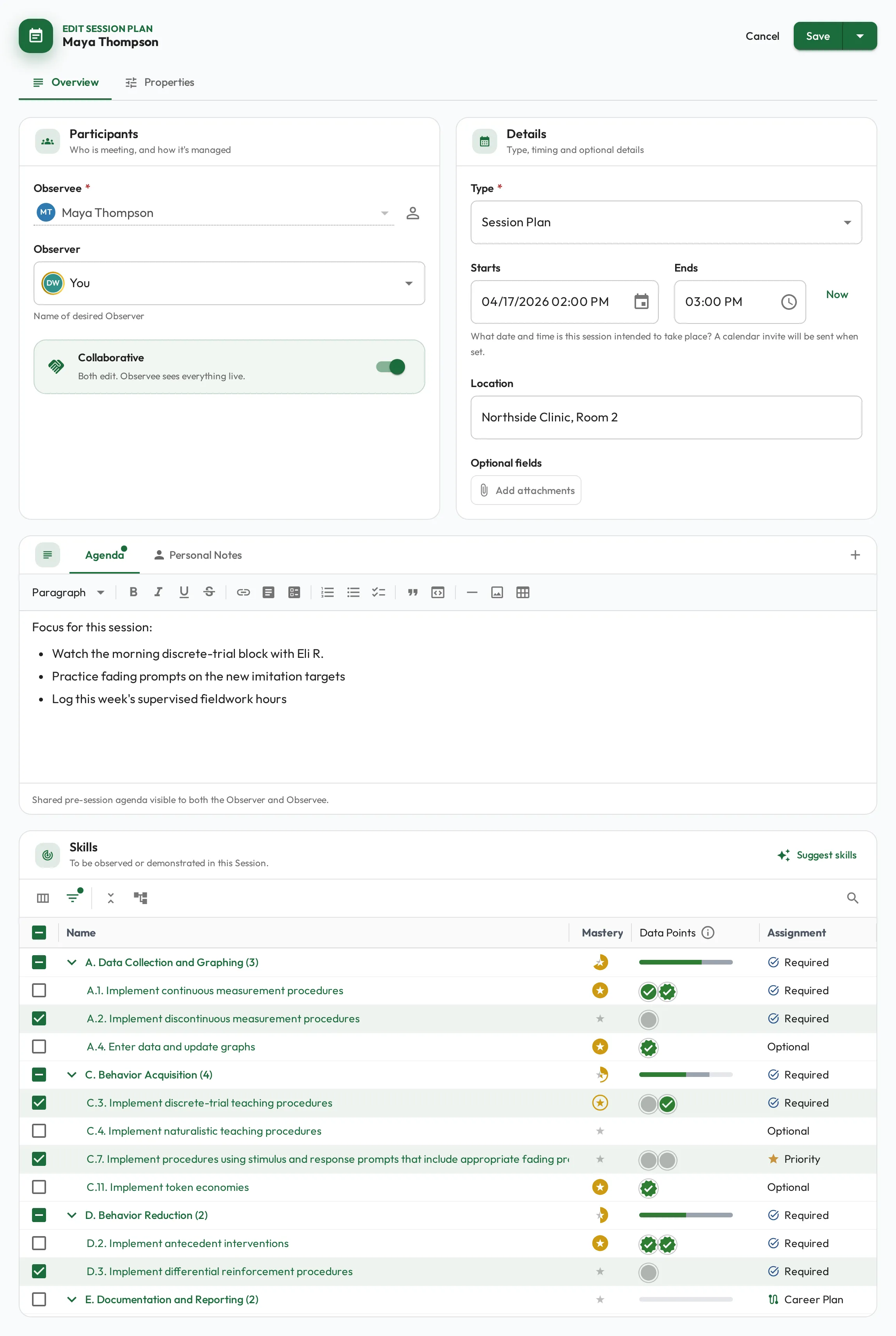
Choose the people: the Observee, who is being observed, and the Observer, who will observe or assess. The Observer starts as you. The Observee list puts you first, then the people you supervise or view, and names each person’s type when it isn’t Staff, such as Clients.
-
Select the skills to focus on, usually the ones most relevant right now. The list includes both the skills expected of their role and any assigned directly through their career plan, so growth skills beyond the role are there to choose too. The Assignment column labels how each skill got there: Priority, Required, Career Plan, or Optional. The person’s profile shows where they stand and what to focus on.
-
Write an agenda (optional) in the Agenda to outline what to cover, such as the programs you will watch them run.
BACB types
Section titled “BACB types”Choose BACB Supervision or BACB Independent Session under Type when the session should count toward BACB requirements. On both, the people read Supervisor and Supervisee, and the BACB fields, such as Supervision Type and Activity Category, sit in Custom fields on the Properties tab.
A BACB Independent Session is the trainee’s own record of independent fieldwork: they are both people on it, it starts as Done, it has no Agenda or Supervisor Notes, and its Supervision Type starts on Independent. The dashboard’s Add Independent Session quick action opens one.
What each field means and how the reports count them: BACB Session Plans.
Collaborative Session Plans
Section titled “Collaborative Session Plans”A new Session Plan starts Collaborative, whoever sets it up: the Observee runs it with the Observer and watches everything land live, the notes, the skills in focus, and each score as the Observer records it. The switch is on the Participants card. Turn it off and it reads Restricted: it is the Observer’s to run, and the Observee sees the results once it is completed.
The switch turns sharing on or off with it. Sharing (Share notes and data with Observee) can change on its own, from Properties here or from Details while the session is running. Once the Session Plan exists, sharing is no longer the Observee’s call: anyone else who can edit it can change it.
Collaborative means the Session Plan is as much theirs as yours: they can read and edit your Supervisor Notes, and delete it while it is still empty. Turn the switch off if either should stay yours alone, then turn sharing back on from Properties if you still want them watching.
| Setting | The Observee |
|---|---|
| Collaborative | Runs it and sees everything live. |
| Collaborative, sharing turned off | Runs the session with you: the agenda and the skills in focus. Your Observation Notes and the scores wait until you share them; Supervisor Notes are open either way. Completing it stays yours. |
| Restricted | Sees the agenda. Notes, skills and scores arrive once you share them, or automatically when the Session Plan is completed. |
| Restricted, but shared during the session | Watches your notes, skills and scores land as you record them, but does not run the session. |
The Observee never records scores on themselves, even on a Collaborative Session Plan. The exception is a self-assessment, where the person observes themselves.
A collaborative Session Plan also doesn’t have to be set up by the supervisor. An RBT or trainee can request and prepare their own: choosing an Observer to assess them, picking the skills they want feedback on, and writing the agenda. The Observer then joins to assess, and can be their own supervisor or another BCBA in the organization, handy for a second opinion from whoever knows the skill best. It puts the supervisee in charge of lining up the session when they’re ready.
Setting one up for themselves, the Observee sees You manage this Session Plan on the Participants card rather than the switch. Sharing starts on for them too, and Properties is where they turn it off if they would rather not watch the assessment being written. That choice is theirs only until they create it.
This pairs naturally with relationships and the dashboard quick Session Plans shortcuts.
When you’re ready, run the session.