

AI Coaching Overview
AI Coaching is AI-powered self-coaching, found under Coach Me in the side menu. It lets an RBT, a Behavior Technician or a trainee practice and test their skills on their own, between Session Plans, so development isn’t limited to time with a supervisor.
It gives people a safe space to learn and check themselves before a supervisor observes them. When people close the part of the gap they can close on their own, supervision time goes toward what AI cannot cover, such as feedback on how they run a program with a Client.
Coaching in Behaview is grounded in your organization’s own skills, Playbook pages, and business context, so it is tailored to your practice rather than generic. You can go further and build custom AI Coaches to shape how a coach guides people on particular skills.
How it works
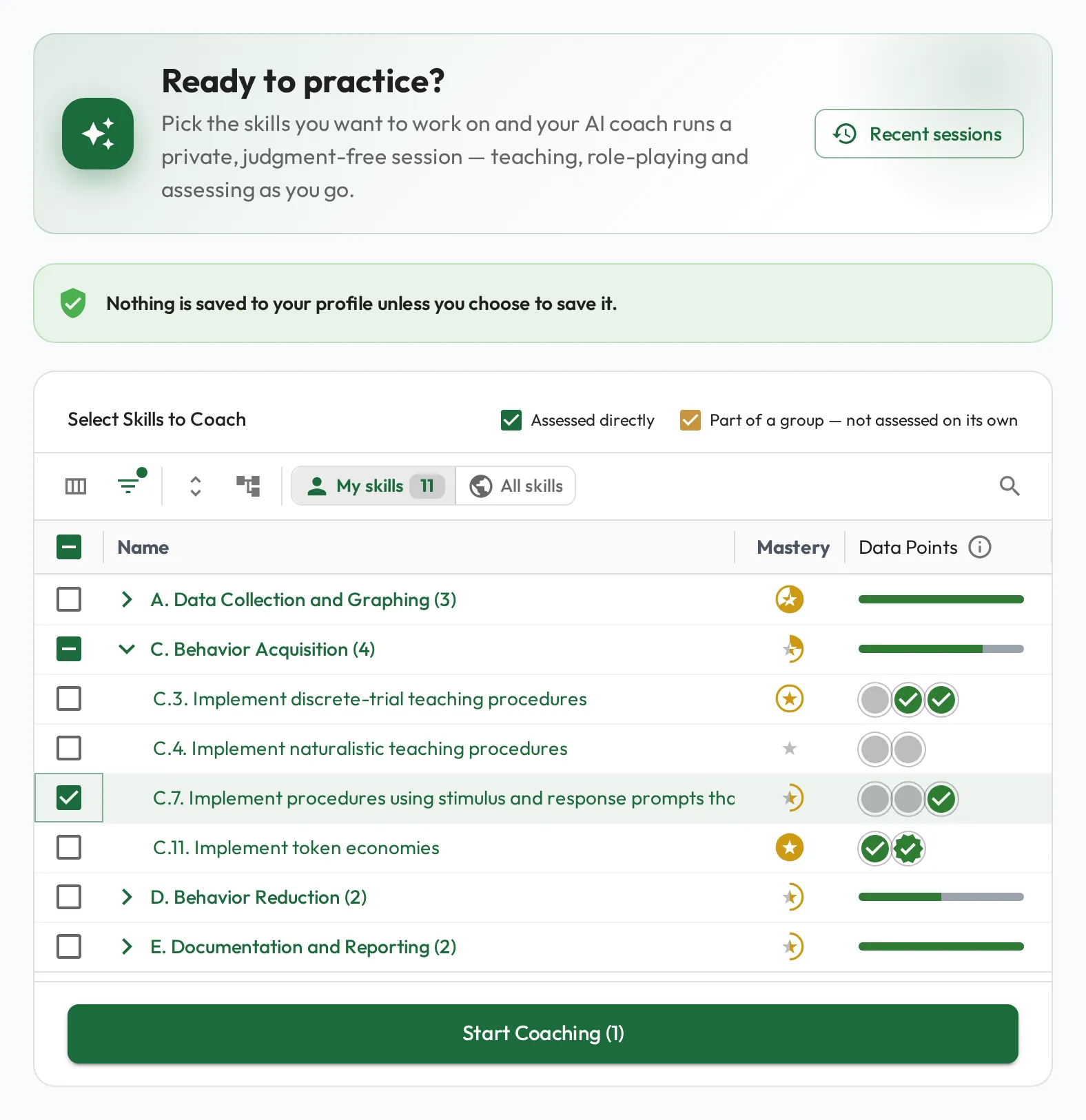
Section titled “How it works”In Select Skills to Coach, tick the skills you want to work on and choose Start Coaching. Ticking a skillset or a section ticks everything in it, and the legend shows which ticked skills are assessed directly and which are not assessed on their own. For better results, pick 10 or fewer skills per session. You can also start from a skill’s own page with its AI Coach button.
From there it is one natural conversation. The coach teaches the skill, explains and gives examples, role-plays situations, and answers questions, the way a good tutor would. An RBT might ask it to explain the difference between DRA and DRO, or to play a parent asking why problem behavior got worse when extinction started. To get going, use the buttons above the message box: Give me an overview, Where should I start? or Test my understanding.
As you show what you understand, the coach forms an assessment of where you stand. There is no separate “learn” or “test” choice to make up front and no score counting down at you while you talk; it stays focused on learning.
Practicing a skill outside your role
Section titled “Practicing a skill outside your role”The skill picker’s toolbar has a two-way toggle: My skills, what your roles, teams and career plan expect of you, and All skills, everything your organization has created. A trainee can use All skills to practice tasks that are not on their plan yet, such as those for the next certification. When nothing is assigned to you yet, My skills is empty and offers a Browse all skills button. If your access doesn’t cover every skill in your organization, the toggle and that button aren’t shown.
Saving a result on an unassigned skill does not assign it to you; assignment stays with a role or a career plan. On your profile’s Progression tab, the result shows when you turn on the globe button, Show skills observed outside their roles.
How results work
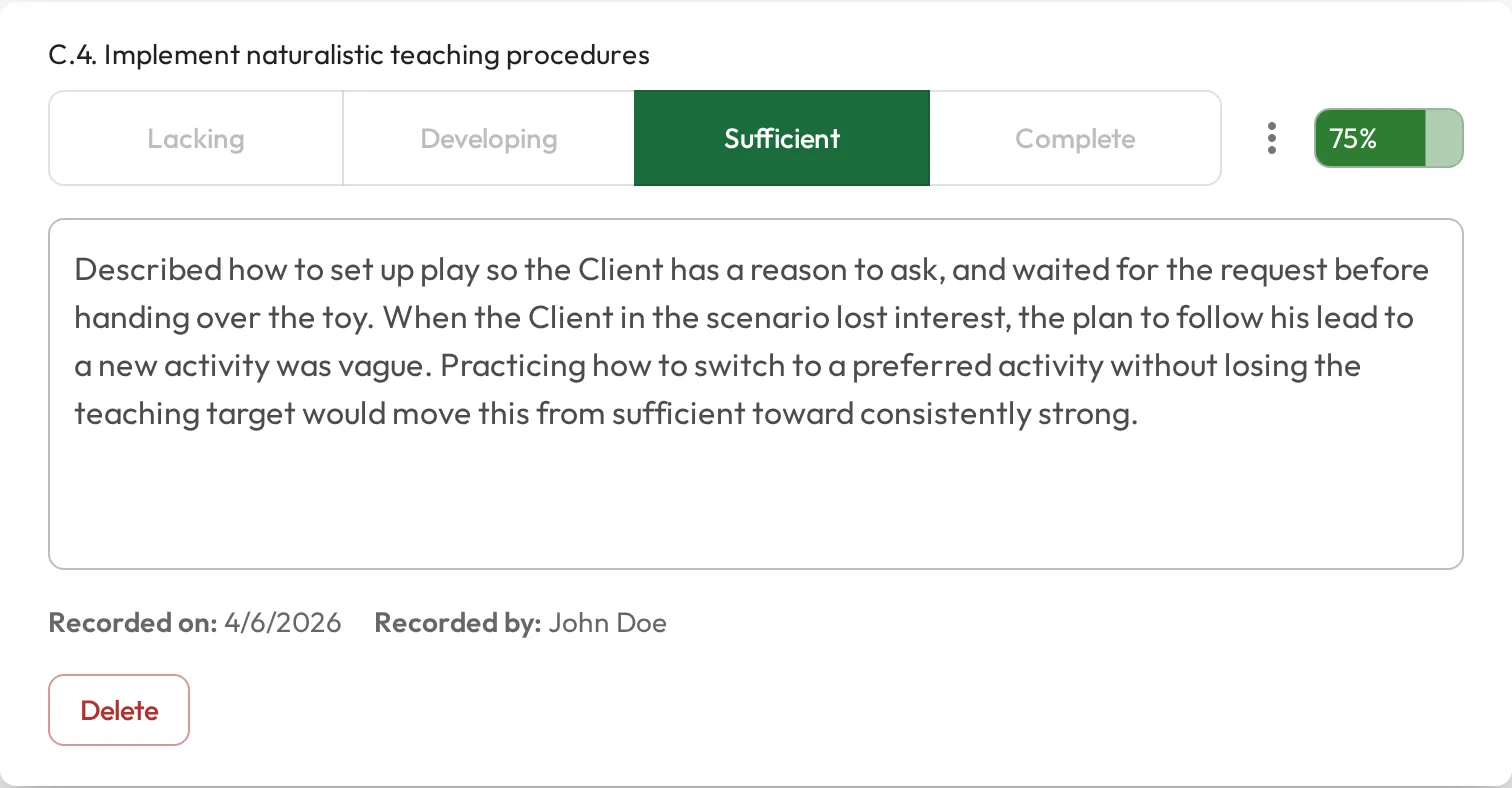
Section titled “How results work”While you chat, the coach keeps a running assessment in the background. When you’ve covered a skill well, it offers you a short summary of how you did and asks whether you’d like to save it to your profile.
You don’t have to wait for that offer. Once you’ve started chatting, use the Assess my progress button above the message box whenever you want a read on where you stand. The coach replies with a short summary of how you’re doing and offers to save it.
Nothing is saved to your profile unless you choose to save it, so you can practice freely without worrying about your record. Once saved, the reply links to View saved assessment. Saved results appear in the AI column on your profile; review them, keep the ones that reflect your real level, and delete the rest. They are a reference for you and your supervisor: they don’t move your mastery level, which only scores recorded by someone else, such as a supervisor, decide.
For how scores roll up into levels and mastery, see Calculating mastery.
AI availability by plan
Section titled “AI availability by plan”The AI features (AI Coaching, AI Coaches, AI-generated content, and the AI-written progress summaries) are available on every plan. What your subscription changes is how much AI you can use in a week:
- Free includes a small weekly allowance, enough to see what the AI features do.
- A Team trial includes a larger weekly allowance, enough to evaluate them properly.
- Team includes a generous weekly allowance for everyday use.
Every plan works the same way, and the allowance refills each week. When you reach it, nothing breaks: the coach replies “You’ve reached this week’s AI usage limit.”, and other AI actions show the same message with a note to upgrade your plan for a larger weekly allowance. You can keep using the rest of Behaview as normal. To change your plan, see Plans & billing.