

Files & media
Many parts of the app let you attach files or embed images: skills, playbooks, AI Coaches, Session Plans, and the Attachments card on a person’s profile. A session recording, a completed data sheet or a treatment plan can sit right beside the work it belongs to.
Uploading
Section titled “Uploading”Upload a file or drop an image directly into an editor. Uploads are handled securely and attached to the item you’re working on.
You can also attach files to a new Skill or Session Plan before you save it. They upload straight away and are attached when you save the record, so the Save button waits for any upload still in progress.
Embedded images must be PNG, JPEG, GIF, WebP or SVG, up to 10 MB each. Anything else is turned down with a message explaining why. iPhone photos in Apple’s HEIC format are the common case, so convert those to JPEG first.
How access works
Section titled “How access works”A file you upload is private to you until it’s added to the item you’re working on, such as a skill or a playbook page. A file you add to a new Skill or Session Plan stays private to you until you save that record. Once added, it’s visible to the people who can see that item, so a file’s audience follows the thing it belongs to. This keeps in-progress uploads private and shared content appropriately visible.
Commenting on files
Section titled “Commenting on files”Click a file’s name in an Attachments list to open it with its comment thread. A video plays in the viewer and a picture can be zoomed. Anything the browser can’t show, such as a PDF, shows a Download button.
On a video, a new comment is pinned to the moment the video is at, so a supervisor and an RBT can discuss precise moments (“at 2:14, notice the prompt came before the Client had a chance to respond”) instead of describing them vaguely. Each comment also shows as a marker on the timeline under the video, except on a phone; click a comment’s time to jump straight there. Starting a comment pauses the video, and a reply stays with the moment of the comment it answers.
Anyone who can see a file can read its comments and reply. Everyone with the file open sees new comments, edits, and deletions as they happen, so you can discuss it at the same time without reopening it. Only a comment’s author can edit or delete it, and deleting a comment also removes its replies.
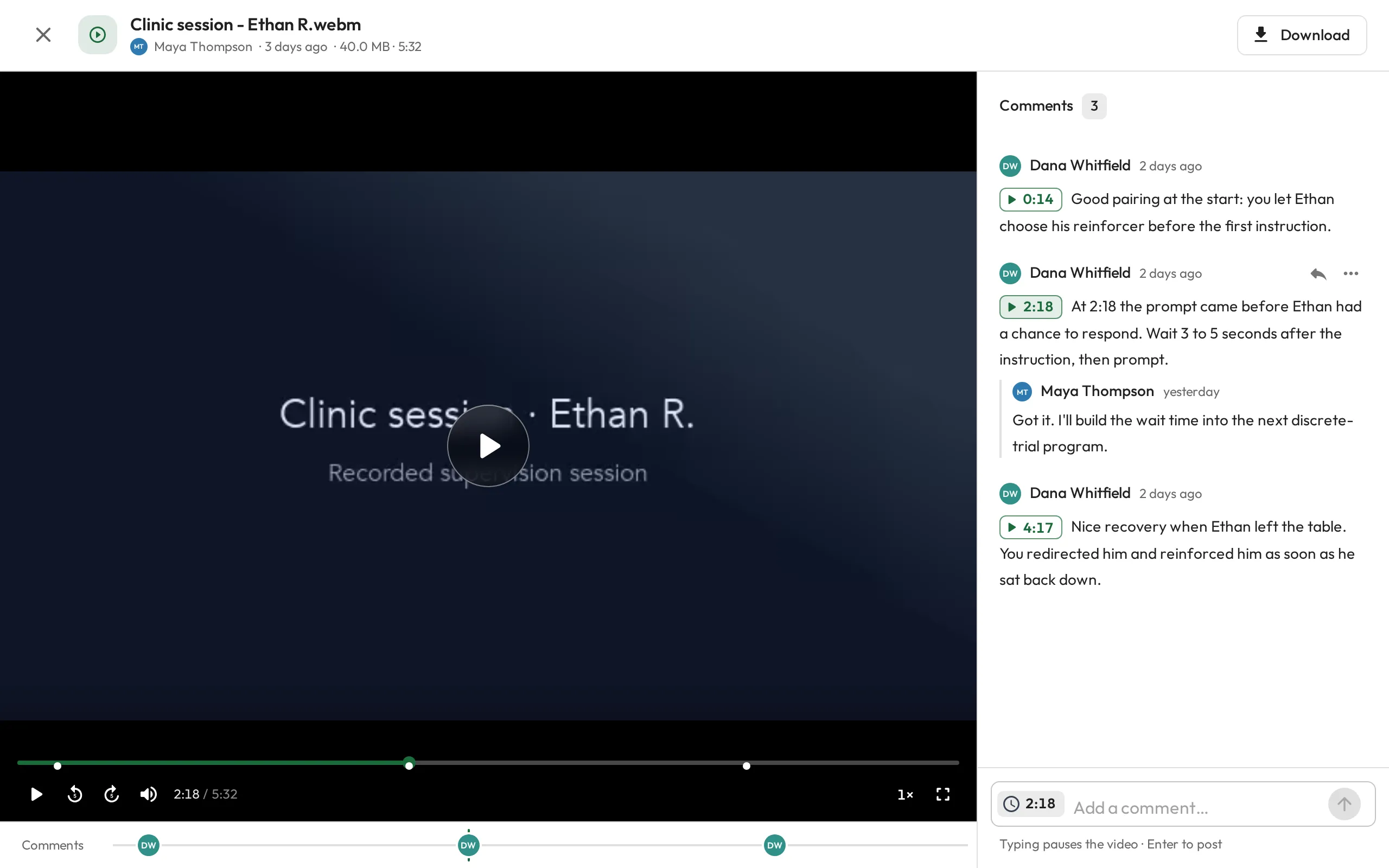
To score a recording while you watch it, attach it to the Session Plan; see Review a recording while you take data. On a BACB Supervision, a supervisor who reviewed a recording without giving feedback in real time records its Format as Recorded Video; see BACB Session Plans.
Watching together
Section titled “Watching together”When someone else is looking at the same file, they appear at the top of the viewer.
On a video, playback is shared. Playing, pausing, skipping, changing the speed or jumping to a comment’s moment happens for everyone, starting a new comment pauses it for everyone, and anyone who falls out of step is brought back. Mute and full screen stay your own.
The Sync playback switch, beside them at the top of the viewer, turns this off for everyone so you each watch on your own. Turning it back on brings everyone to where you are.
If someone else starts the video and your browser won’t play it with sound, as Safari often does, it plays muted so you stay in step.