

Artifact sources
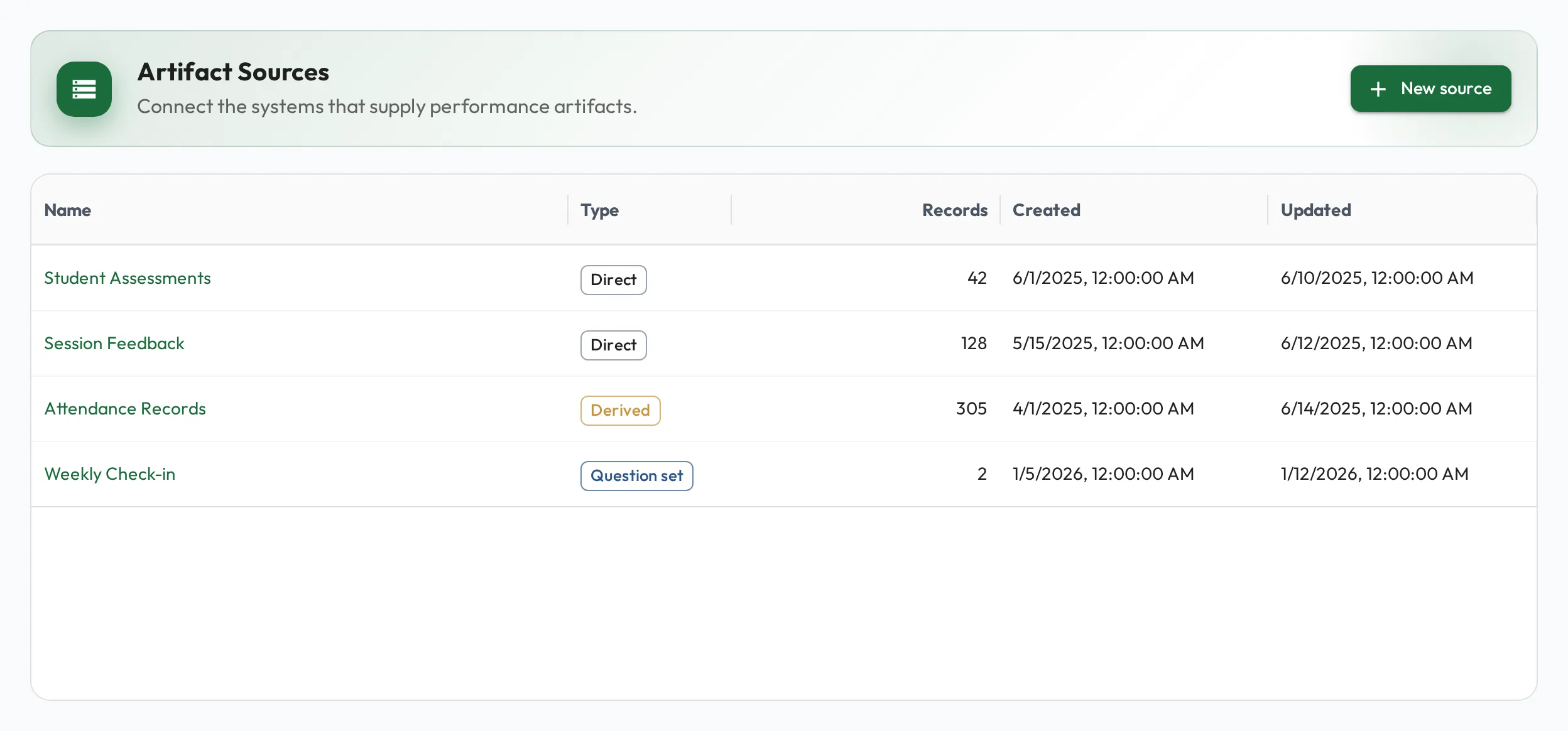
Artifact sources let you bring outside data in, from your practice-management or billing system, your data-collection app, or any system that produces records. Once your data is in, you can query it and surface it in dashboards and role metrics, connecting what people do to the outcomes it produces.
Why bring data here rather than into a BI tool or a spreadsheet? Artifact sources sit right next to your people and skills and are built to be simple: you get an easy way to combine data from several systems without standing up a complex BI stack, and permissions are preserved, so each person sees only what they’re allowed to. Performance data lands in context, where it drives supervision and lets individuals monitor their own results.
Use cases
Section titled “Use cases”- Let individuals self-monitor: ingest the data tied to a role (an RBT’s billable hours and session-note completion, a BCBA’s treatment-fidelity checks) so each person can see their own performance on their profile and power role metrics that update continuously.
- Combine data without a BI project: pull records from several systems into one place and join or aggregate them with derived sources and queries, with no separate warehouse or BI tool to stand up and maintain.
- Permission-aware reporting: a dashboard’s widgets show only the sources each viewer can read, so you can share dashboards broadly. A role metric is different: it shows to anyone who can see that person’s observations, whatever sources they can read.
Data from your operational systems lands next to your people and becomes the performance insights and KPIs your supervisors work from:
flowchart LR
  subgraph Sources["Your operational systems"]
    PM["Practice management<br/><small>sessions, billable hours</small>"]
    DC["Data collection<br/><small>session data</small>"]
    TF["Fidelity checks<br/><small>treatment-fidelity scores</small>"]
  end
  AS(["Artifact sources"])
  subgraph Out["Performance in context"]
    M["Role metrics and KPIs"]
    D["Dashboards"]
    P["Self-monitoring on profiles"]
  end
  PM --> AS
  DC --> AS
  TF --> AS
  AS --> M
  AS --> D
  AS --> P
What a source is
Section titled “What a source is”A source is a definition of a kind of data you want to track. Each source has columns with types (text, number, date, true/false, and so on). A new column’s type is worked out from the first data that contains it, so you don’t have to set up columns up front. That type doesn’t change later: if later data doesn’t fit, change the column’s type on the Columns tab. Values that don’t fit read as empty.
One type is never inferred for you: User. Set a column’s type to User when its values are the IDs the app uses for people, and the records grid renders each value as that person, linked to their profile, rather than as a bare number. A value matching nobody you can see shows as “Unknown user” alongside the ID, so a bad mapping is visible at a glance. Queries, dashboards, and role metrics still read the plain ID, so a User column is what a metric’s :staff_id filter compares against.
Records of any shape
Section titled “Records of any shape”A record can be any JSON shape. Each column routes a JSON path to the value it shows, so a column can pull from a nested field, not just a top-level one.
For example, given a session record exported from a practice-management system:
{ "session_id": 48213, "service": "Direct therapy", "provider": { "email": "maya.chen@example.com" }}you might define columns that route to:
session_id→$.session_idservice→$.serviceprovider_email→$.provider.email
Columns are added automatically for the fields a record carries, and top-level fields work straight away. A column added for a nested field, such as provider.email, shows nothing until you set its JSON Path on the Columns tab, here to $.provider.email. The JSON stays as-is; the columns decide which paths become tidy, typed columns for querying and reporting.
Getting data in
Section titled “Getting data in”See Uploading & ingesting data.
Artifact processing (dynamic columns)
Section titled “Artifact processing (dynamic columns)”Beyond the columns that come straight from your data, you can add dynamic columns computed with SQL, for example a derived status, a bucket, or a score, such as flagging sessions whose note was signed more than two days late. The processing runs over the source and stores the results as extra columns you can query and report on just like any other. See Querying your data (SQL) for how the queries work.
Derived artifact sources
Section titled “Derived artifact sources”You can also create a derived source: a brand-new source whose rows are produced by a SQL query over one or more existing sources. This is the way to build aggregations, cross-source joins, or computed tables that you then query and chart like any other source.
When you create a source, turn on Derived and supply the query whose result becomes the new source’s records. You can write it in plain English or in SQL (see Querying your data).
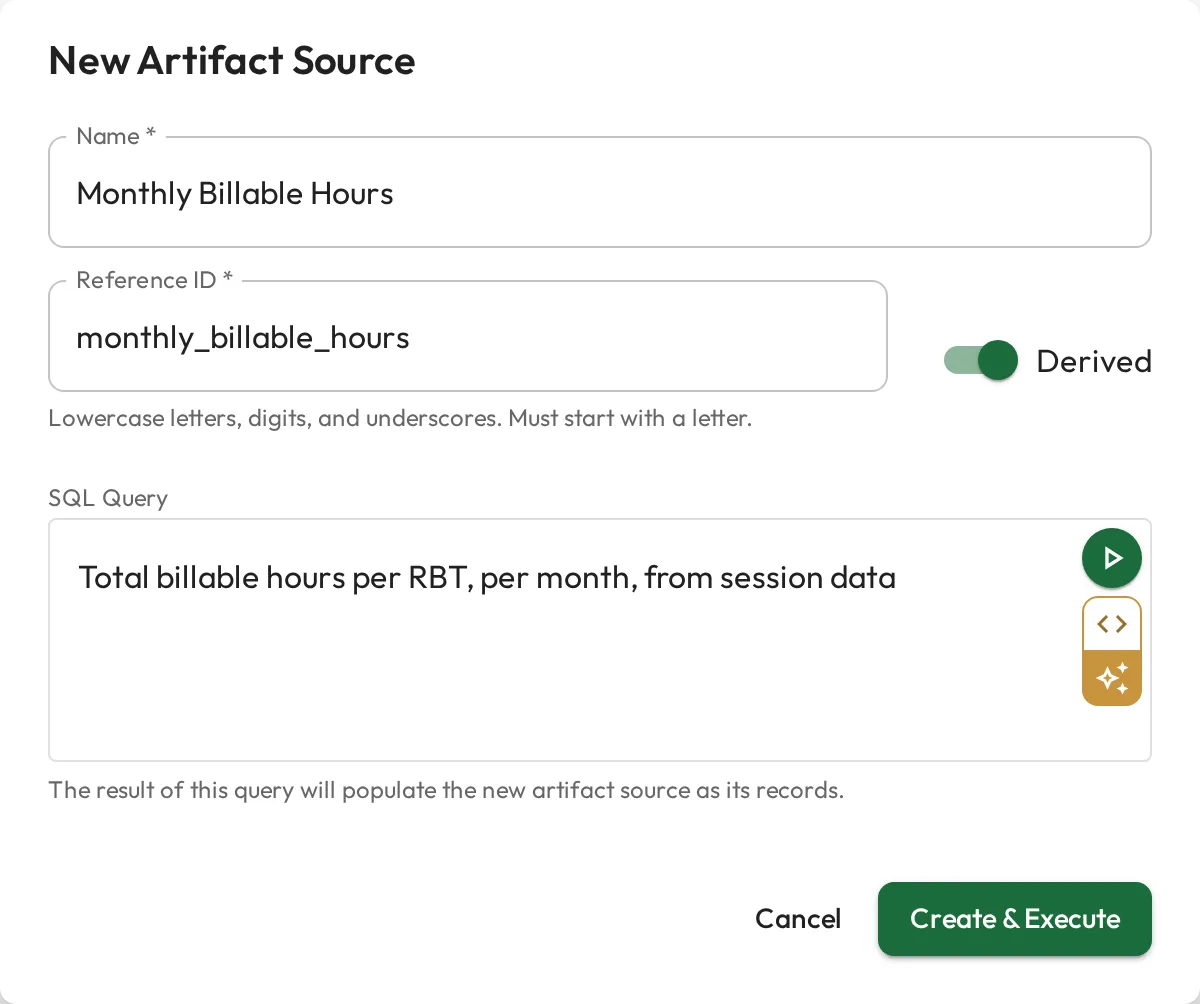
A derived source pulls from one or more existing sources, runs your query, and saves the result as a new source you can query:
flowchart LR
  S1["Sessions<br/><small>source</small>"]
  S2["Fidelity checks<br/><small>source</small>"]
  Q{{"SQL query<br/><small>join · aggregate</small>"}}
  N(["RBT monthly summary<br/><small>derived source</small>"])
  S1 --> Q
  S2 --> Q
  Q --> N
Sharing a source
Section titled “Sharing a source”Admins, Supervisors, and Supervisees can create a source, in the app or through a connected AI tool, and whoever creates one owns it: it is theirs and an Admin’s until they share it. To give one person, team, or role access to just this source, use its Permissions tab. The creator’s row there, at Full access, is the access creating the source gave them, and it changes like any other row: removing it takes the source away from them unless a team, a role, or their permission set also gives them access. See Sharing sources & dashboards.
Purging vs. deleting
Section titled “Purging vs. deleting”There are two ways to clear data, both on the Edit source page, with an important difference:
- Purge removes the records in a source but keeps the source itself. Its columns and configuration stay in place, ready for a fresh load. Use this to reset the data without rebuilding the source.
- Delete source, beside Purge, removes the entire source, its definition and all its records. Use this when you no longer need the source at all.