

Impersonating users
Sometimes you need to see Behaview as someone in a role sees it: to check what an RBT can access, preview what a trainee sees on their dashboard, or sanity-check your setup before inviting anyone. Impersonation lets an admin do that with a placeholder person.
How it works
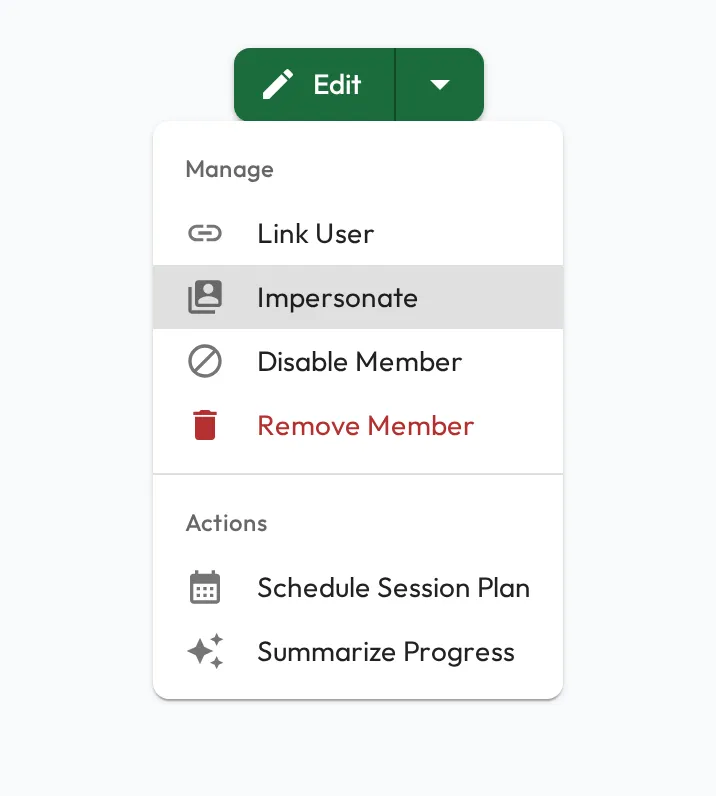
Section titled “How it works”Only placeholder people can be impersonated: people you’ve added without inviting. As an admin, open a placeholder person’s profile and choose Impersonate from the Manage menu. Behaview shows you the platform as that person, with the same navigation, permissions, skills, and data they would see. Everything is scoped to their access, so it’s a faithful preview of their experience.
While you’re impersonating, a gold band frames the window and the top bar shows Impersonating with the person’s name, as a constant reminder that you’re viewing as someone else. Impersonation applies to that browser tab only. Choose the × on that chip to stop impersonating and return to your own account.
Preview a role
Section titled “Preview a role”Create a placeholder in a role, impersonate them, and you can see precisely what someone in that role will get before they ever receive an invite. For example, add a placeholder RBT to the RBT role and a clinic team, make a BCBA their Supervisor, and check what the RBT sees in their Session Plans and on their profile. It’s the easiest way to validate roles, skills, and visibility while you set the organization up.
The demo users Account Setup creates, such as Demo RBT Candidate, are placeholders too, so you can impersonate one to see a trainee’s view with sample data in place.