Relationships
Relationships capture who supervises whom, such as the BCBA who supervises an RBT’s ongoing work or a trainee’s fieldwork. Assigning a Supervisor and Supervisee is more than a label: together with each person’s permission set, it’s what grants supervision access and powers the one-click shortcuts on the dashboard.
Kinds of relationship
Section titled “Kinds of relationship”| Kind | The two sides | What the parent side gets |
|---|---|---|
| Supervisor | Supervisor of / Supervisee of | Run the Supervisee’s Session Plans, record observations, and see and manage their development, when the Supervisor’s role uses the Supervisor permission set |
| Viewer | Viewer of / Viewee of | Read the Viewee’s Session Plans and observations without managing them, when the Viewer’s role uses the Viewer permission set |
Each relationship has two sides, so the same link reads correctly from either person’s point of view: the BCBA is Supervisor of the RBT, and the RBT is Supervisee of the BCBA. In the BACB Account Setup roles, the BCBA role uses the Supervisor permission set and the others use Supervisee (see Roles from Account Setup).
Setting up a relationship
Section titled “Setting up a relationship”You assign relationships in two places:
- On a person’s profile: choose Edit from the Manage menu, then in the Relationships card choose Add relationship, pick the side and the person or team, and save.
- On a team: choose Edit team and add it in the team’s Relationships card. A relationship on a team applies to every member, so a BCBA who is Supervisor of the North Clinic team supervises each RBT in it.
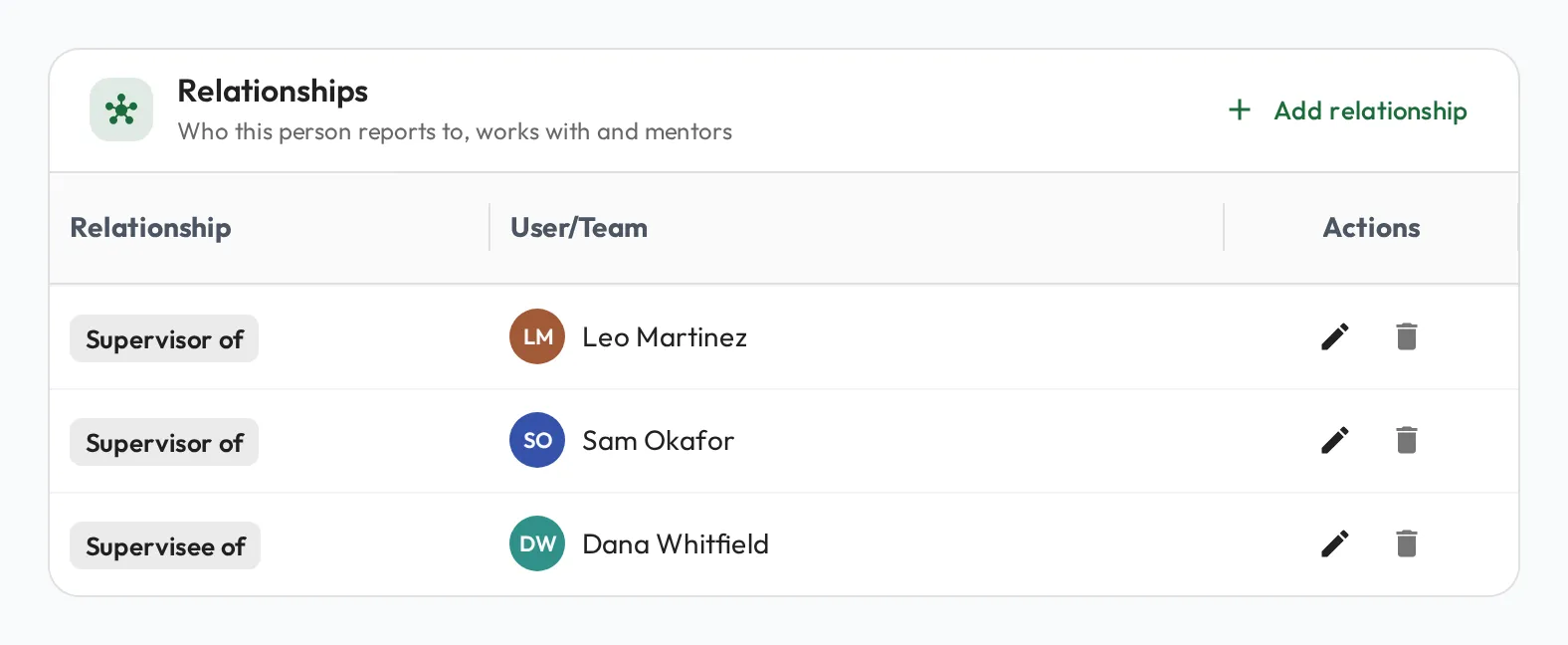
Anyone who can see a person’s Overview tab, or a team’s page, sees every name in its Relationships card, even for people whose own profile they can’t open; those names aren’t links. A Guardian/Parent with Viewer access who is set as a Viewer of their child, for example, sees who is set as the child’s Supervisor.
Why relationships matter
Section titled “Why relationships matter”Setting a relationship has real implications beyond organization:
- Permissions are bound to relationships. Being someone’s Supervisor is what gives you access to supervise them: to run their Session Plans, record observations, and see their development. You don’t manage these grants separately; the relationship carries them, as long as your role’s permission set is Supervisor (see Users & permissions for how access is determined overall).
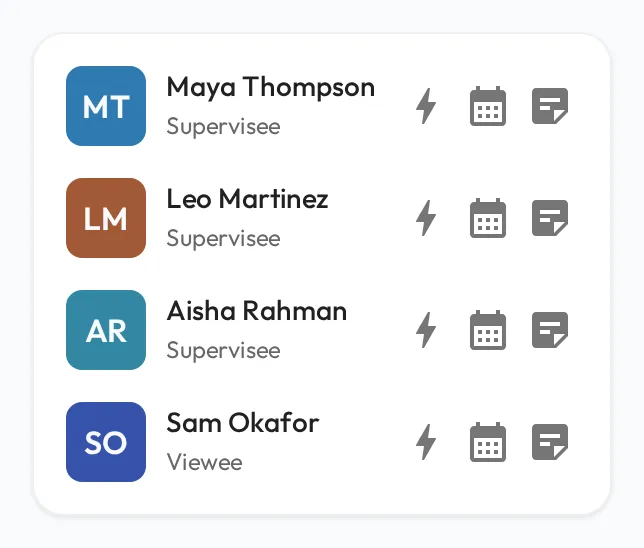
- Dashboard shortcuts for your immediate relationships. Everyone you supervise or view, and everyone who supervises or views you, appears in My Direct Team on your dashboard, labelled Supervisor, Supervisee, Viewer, Viewee or Peer. Each row has quick actions: Quick Start a Session Plan, Schedule a Session Plan, and Add a Note (see Quick Session Plans and Notes), so day-to-day supervision takes seconds, not clicks through menus.